| |
| Extracting GPS data from JPEG files | 06 Jul 2012 | 2000+ |
| How to specify which version of Access to use for OLE automation | 07 Mar 2012 | 2000+ |
| Accessing detailed file information provided by the Operating System | 03 Mar 2010 | 2000+ |
| The differences between Nothing, Empty, Missing, Null, Zero and ZLS | 18 May 2009 | 97+ |
| Logging form/report usage (CODE) | 18 May 2009 | 97+ |
| Find As You Type (CODE) | 17 May 2009 | 2000+ |
| Using an Access 2007 (.accdb) back-end database in an Access 2000+ front-end application | 26 Jun 2008 | 2000+ |
| Scroll records with the mouse wheel in Access 2007 | 18 Jan 2008 | |
| Using VBA to insert characters at the cursor position | 18 Jan 2008 | 95+ |
| Code for Has the record been printed? | 18 Jan 2008 | 95+ |
| What is VBA? | 17 Jan 2008 | 95+ |
| DAO programming examples | 23 Mar 2007 | ALL VERSIONS |
| Easily copy an SQL statement from a query to VBA | 23 Mar 2007 | ALL VERSIONS |
| ADO programming examples | 23 Mar 2007 | 2000+ |
| ADOX programming examples | 23 Mar 2007 | 2000+ |
| List files recursively | 30 Jun 2006 | 95+ |
| ParseWord() - an alternative to Split() | 30 Jun 2006 | 95+ |
| FileExists() and FolderExists() | 30 Jun 2006 | 95+ |
| ClearList() and SelectAll() | 30 Jun 2006 | 95+ |
| Code for Build a search criteria form | 30 Jun 2006 | 95+ |
| Code for Relationship Report with extended field information | 01 Feb 2006 | 97+ |
| Bring an external application window to the foreground | 03 Jun 2005 | 97+ |
| Get all IP Addresses of your machine | 18 May 2005 | 97+ |
| VBA: Convert text to proper case (alternative to StrConv()) | 20 Apr 2005 | v1, v2 |
| Alternative to Nz for Access v1 / v2 | 20 Apr 2005 | v1, v2 |
| Copying a file in Access v2 | 20 Apr 2005 | v2 |
| Copying data to and from the Clipboard (Acc 95+) | 20 Apr 2005 | 95+ |
| Copying data to and from the Clipboard (Acc 1-2) | 20 Apr 2005 | v1, v2 |
| Play a sound file in VBA | 20 Apr 2005 | ALL VERSIONS |
| Calculate a persons age given the DOB | 20 Apr 2005 | 95+ |
| MinOfList() and MaxOfList() functions | 20 Apr 2005 | 97+ |
| Code for Printer Selection Utility | 20 Apr 2005 | 2000+ |
| VBA Traps: Errors in Logic | 20 Apr 2005 | 95+ |
| VBA Traps: Working with Variables | 20 Apr 2005 | 95+ |
| VBA Traps: Working with Recordsets | 20 Apr 2005 | 95+ |
| Extended/Replacement DLookup() | 20 Apr 2005 | 95+ |
| Error Handling in Access Basic | 20 Apr 2005 | v2 |
| Error Handling in VBA | 20 Apr 2005 | 95+ |
| Returning more than one value from a function | 20 Apr 2005 | ALL VERSIONS |
| |
| Steps to recover from Access database corruption | 20 May 2009 | v2+ |
| List files to a table | 05 Feb 2009 | 2000+ |
| Code for Splash screen with version information | 24 Feb 2008 | 97+ |
| Bugs introduced in Access 2003 SP3 | 31 Jan 2008 | 2003 |
| Preventing corruption | 20 Apr 2005 | v2+ |
| Preventing corruption (old version) | 20 Apr 2005 | v2+ |
| Recovering from corruption | 20 Apr 2005 | v2+ |
| Access Database Corruption Repair Guide | 13 Feb 2005 | ALL VERSIONS |
| |
| Jet MDB security - under the hood | 15 Feb 2009 | ALL VERSIONS |
| Changing the encryption type in Access Part 2 | 04 Jun 2008 | |
| Changing the encryption type in Access 2007 | 28 May 2008 | |
| Access 97 'enabled' MDE databases are vulnerable! | 25 Oct 2006 | 97+ |
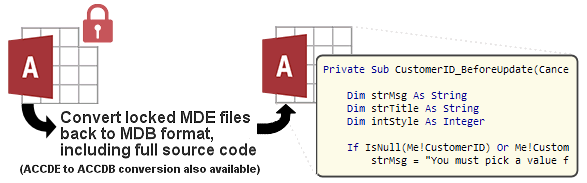
| How to make design changes to an Access MDE file | 02 Oct 2006 | 97+ |
| Protect the VBA source code in your MDE files | 26 Jun 2006 | 97+ |
| Outlook Send E-mail Without Security Warning | 06 Sep 2005 | 97+ |
| Field-level Permissions in Microsoft Access | 30 Apr 2005 | 2000+ |
| Enabling/Disabling controls based on User Security | 20 Apr 2005 | ALL VERSIONS |
| |
| Access basics: free tutorial | 18 Jan 2008 | ALL VERSIONS |
| Rounding in Access | 18 Jan 2008 | 95+ |
| Prevent Access 2007 users from modifying existing databases | 18 Jan 2008 | |
| What is Microsoft Access? | 17 Jan 2008 | ALL VERSIONS |
| The lowdown on Access 2007 | 23 Mar 2007 | ALL VERSIONS |
| Problem names and reserved words | 06 Sep 2006 | ALL VERSIONS |
| Postal / Zip codes | 06 Sep 2006 | 97+ |
| Quotation marks within quotes | 30 Jun 2006 | 95+ |
| Database Issue Checker Utility | 30 Jun 2006 | 2000+ |
| Managing Access COM Add-Ins | 17 Jan 2006 | 2000+ |
| Common Errors with Null | 20 Apr 2005 | 95+ |
| Event Driven Programming | 20 Apr 2005 | ALL VERSIONS |
| Currency format does not reflect regional settings | 20 Apr 2005 | v2+ |
| International Dates in Access | 20 Apr 2005 | v2+ |
| Display system and version information | 20 Apr 2005 | 2000+ |
| Solving Problems with Library References (e.g. Date() fails) | 20 Apr 2005 | 97+ |
| Custom Database Properties | 20 Apr 2005 | v2+ |
| Self Joins | 20 Apr 2005 | ALL VERSIONS |
| The DAO Object Model | 20 Apr 2005 | v2+ |
| Split your MDB file into data and application | 20 Apr 2005 | ALL VERSIONS |
| Calculating Elapsed Time | 20 Apr 2005 | ALL VERSIONS |
| Nulls: Do I need them? | 20 Apr 2005 | 95+ |
| Mail Merge with Word for Windows | 20 Apr 2005 | v2 |
| Undocumented SysCmd Functions | 19 Apr 2005 | 97+ |
| |
| A new method for disabling the Mouse Scroll Wheel in Access forms | 12 Aug 2009 | 97+ |
| Lookup a value in a range | 20 May 2009 | 95+ |
| Extended DAvg(): EAvg() | 20 May 2009 | 95+ |
| Ranking or numbering records in forms/reports | 20 May 2009 | 95+ |
| Logging form/report opening | 18 May 2009 | 97+ |
| Highlighting search matches in Access 2007 | 18 May 2009 | 2003 |
| Flagging required fields in forms | 17 May 2009 | 97+ |
| Where are macros used in my forms and reports? | 29 Jan 2008 | 95+ |
| Avoid #Error in form/report with no records | 18 Jan 2008 | v2+ |
| Enter text in calculated controls | 18 Jan 2008 | 95+ |
| Parameter of type Text is evaluated wrongly | 01 Dec 2006 | 97+ |
| Find as you type - Part 2: How it works | 06 Sep 2006 | 97+ |
| Find as you type | 06 Sep 2006 | 97+ |
| Why does my form go completely blank? | 05 Sep 2006 | ALL VERSIONS |
| Build a search criteria form | 30 Jun 2006 | 95+ |
| Enter value as a percent | 31 May 2005 | 95+ |
| Listing Directory contents in a listbox / combo list | 20 Apr 2005 | ALL VERSIONS |
| Losing data when you close a form (bug) | 20 Apr 2005 | ALL VERSIONS |
| List Box of Available Reports | 20 Apr 2005 | 95+ |
| Combos with Tens of Thousands of Records | 20 Apr 2005 | 95+ |
| NotInList: Adding values to lookup tables | 20 Apr 2005 | 95+ |
| NotInList: Adding values to lookup tables (old version) | 20 Apr 2005 | 95+ |
| Using the NotInList event (combo) | 20 Apr 2005 | v2 |
| Managing Combo Boxes | 20 Apr 2005 | v2+ |
| Using a Combo Box to Locate Records | 20 Apr 2005 | 97+ |
| Popup Calendar | 20 Apr 2005 | 97+ |
| Managing Multiple Instances of a Form | 20 Apr 2005 | 95+ |
| Limiting text input length of an unbound text box | 20 Apr 2005 | 95+ |
| Filter a Form on a Field in a Subform | 20 Apr 2005 | 95+ |
| Return to the same record next time form is opened | 20 Apr 2005 | 95+ |
| Carry data over to new record | 20 Apr 2005 | 95+ |
| Carry data over to new record (old version) | 20 Apr 2005 | 95+ |
| Rolling dates by pressing "+" or "-" | 20 Apr 2005 | v2+ |
| Editing Form and control properties at runtime | 20 Apr 2005 | 95+ |
| Print the record in the form | 20 Apr 2005 | ALL VERSIONS |
| Assigning Auto Keys for Aligning Controls | 20 Apr 2005 | ALL VERSIONS |
| Referring to controls on a subform | 20 Apr 2005 | ALL VERSIONS |
| '#Error' when a Subform has no records | 01 Jan 1999 | ALL VERSIONS |
| Referring to properties and controls from a form/report | 01 Jan 1999 | ALL VERSIONS |
| Referring to controls within a tabbed form | 01 Jan 1999 | ALL VERSIONS |
| |
| Hide duplicates selectively | 18 Jan 2008 | v2+ |
| Has the record been printed? | 18 Jan 2008 | 95+ |
| Bring the total from a subreport back onto the main report | 30 Jun 2006 | 97+ |
| Print a page with 3 evenly spaced mailing slips | 20 Apr 2005 | ALL VERSIONS |
| Check boxes in reports | 20 Apr 2005 | ALL VERSIONS |
| Use a multi-select list box to filter a report | 20 Apr 2005 | 95+ |
| Printing a Quantity of a Label | 20 Apr 2005 | ALL VERSIONS |
| Sorting records in a Report at runtime | 20 Apr 2005 | 95+ |
| Reports: Snaking Column Headers | 20 Apr 2005 | ALL VERSIONS |
| Reports: Create a blank line every fifth record | 20 Apr 2005 | v2+ |
| Reports: Page Totals | 20 Apr 2005 | v2+ |
| Numbering Entries in a Report or Form | 20 Apr 2005 | v2+ |
| Limiting a Report to a Date Range | 20 Apr 2005 | ALL VERSIONS |
| Exporting Reports whilst retaining graphics | 01 Jan 1999 | ALL VERSIONS |
| Removing Min/Max/Close buttons from a Report's Preview Window | 01 Jan 1999 | ALL VERSIONS |
| |
| Cascade to Null Relations | 20 May 2009 | 2000+ |
| Using the Currency field data type - without the hassle | 28 Mar 2009 | 97+ |
| Creating an Audit Trail (Source Code) | 15 May 2008 | 97+ |
| Starting Relationships - The Microsoft Access Way | 17 Jan 2008 | ALL VERSIONS |
| Validation Rules | 23 Mar 2007 | ALL VERSIONS |
| Truncation of Memo fields | 05 Sep 2006 | ALL VERSIONS |
| Archive: Move records to another table | 05 Sep 2006 | 95+ |
| DeleteAllRelationships() | 05 Sep 2006 | 95+ |
| Dump table details in VBA (DAO) | 20 Apr 2005 | 95+ |
| Undelete Options (records) | 20 Apr 2005 | ALL VERSIONS |
| Referential Integrity can't be that easy! | 20 Apr 2005 | ALL VERSIONS |
| Data Types in Access | 20 Apr 2005 | ALL VERSIONS |
| What, no record numbers? | 20 Apr 2005 | ALL VERSIONS |
| Finding duplicate records in a table | 20 Apr 2005 | ALL VERSIONS |
| Creating an Audit Trail | 20 Apr 2005 | 95+ |
| Field type names (JET, DDL, DAO and ADOX) | 20 Apr 2005 | 2000+ |
| Renaming fields and tracing dependencies | 20 Apr 2005 | 2000+ |
| Fixing AutoNumbers (AutoNumber bug in Jet 4.0) | 20 Apr 2005 | 2000+ |
| Set AutoNumbers to start from ... | 20 Apr 2005 | 95+ |
| Reconnect linked tables on Start-up | 20 Apr 2005 | v2+ |
| Reducing OLE Linking Overhead | 20 Apr 2005 | v2+ |
| Introduction to Hyperlink fields | 20 Apr 2005 | 97+ |
| Getting a value from a table: DLookup() | 20 Apr 2005 | ALL VERSIONS |
| Relationships between tables | 20 Apr 2005 | ALL VERSIONS |
| Undelete Tables and Queries in Access | 18 Apr 2005 | 97+ |
| Using AutoNumbers properly | 01 Jan 1999 | ALL VERSIONS |
| |
| Google-Eye (Using the Web Browser ActiveX Control) | 14 Jul 2005 | 97+ |
| People in households and companies - modelling human relationships | 20 Apr 2005 | 2000+ |
| Printer Selection Utility | 20 Apr 2005 | 2000+ |
| Clashing Events/Appointments | 20 Apr 2005 | 95+ |
| Inventory Control: Quantity on Hand | 01 Jan 1994 | 95+ |
| |
| Converting from Access 97 to 2000, 2002 or 2003 | 20 Apr 2005 | 97+ |
| Converting from Access 1 or 2 to Access 95 or 97 | 20 Apr 2005 | v1, v2, 95, 97 |
| |
| Setting up Default Forms and Report templates | 20 Apr 2005 | ALL VERSIONS |
| What are these objects? (tables, queries, etc) | 20 Apr 2005 | ALL VERSIONS |
| What to do when a database won't open | 01 Jan 1999 | 97 |
| |
| What is SQL? | 17 Jan 2008 | ALL VERSIONS |
| What's a subquery? | 23 Mar 2007 | ALL VERSIONS |
| Surviving Subqueries | 23 Mar 2007 | ALL VERSIONS |
| DDL query code examples | 23 Mar 2007 | 97+ |
| Crosstab query techniques | 05 Sep 2006 | ALL VERSIONS |
| Why can't I append some records? | 30 Jun 2006 | 95+ |
| Action queries: suppressing dialogs, while knowing results | 30 Jun 2006 | 95+ |
| Why is my query read-only? | 30 Jun 2006 | 95+ |
| Calculated fields being misinterpreted | 20 Apr 2005 | ALL VERSIONS |
| Calculated Fields | 20 Apr 2005 | ALL VERSIONS |
| The query lost my records! | 20 Apr 2005 | ALL VERSIONS |
| |
| Why I stopped using Yes/No fields | 20 May 2009 | ALL VERSIONS |
| Slow queries in Microsoft Vista | 18 Jan 2008 | 97+ |
| Grouping by Memo field yields garbage | 01 Dec 2006 | 97+ |
| Concatenated fields yield garbage in recordset | 01 Dec 2006 | 97+ |
| Outer join queries fail on Yes/No fields | 01 Dec 2006 | 97+ |
| Relationship Report with extended field information | 01 Feb 2006 | 97+ |
| DISTINCT query handles Nulls inconsistently | 20 Dec 2005 | ALL VERSIONS |
| Query NULL comparison gives wrong result (bug) | 20 Apr 2005 | ALL VERSIONS |
| Records missed by SELECT query (bug) | 20 Apr 2005 | 2000+ |
| Problem properties (bugs) | 20 Apr 2005 | 2000+ |
| Incorrect sorting with Decimal fields (bug) | 20 Apr 2005 | 2000+ |
| Incorrect displaying of data in forms (bugs) | 20 Apr 2005 | 95+ |
| Conditional formatting bug | 20 Apr 2005 | 2000+ |
| Writing the wrong record (Bookmark bug) | 20 Apr 2005 | 97, 2000 |
| Writing the wrong record (Bookmark bug, old version) | 20 Apr 2005 | 97, 2000 |
| Failures caused by Name Auto-Correct (bugs) | 20 Apr 2005 | 2000+ |
| Incorrect filtering in forms/reports (4 bugs) | 20 Apr 2005 | 95+ |
| Errors using multiple versions of Access under Vista/Windows 7 | 20 Apr 2005 | |
| Bug: Flickering tab controls in Access 2003 | 20 Apr 2005 | 2003 |
| Access 97 'Error 3014 - Can't open any more tables.' | 01 Jan 1999 | 97 |
| Access 97 Bookmark Bug | 07 Sep 1998 | 97 |



 Twitter
