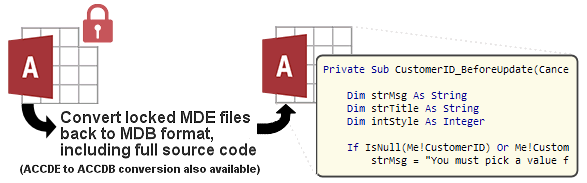
IN THE SPOTLIGHT: MDE to MDB Conversion Service
(also supports: ACCDE to ACCDB, ADE to ADP, etc)
IN THE SPOTLIGHT: Access Database Repair Service
An in-depth repair service for corrupt Microsoft Access files

IN THE SPOTLIGHT: vbWatchdog
VBA error handling just got easier...

" vbWatchdog is off the chart. It solves a long standing problem of how to consolidate error handling into one global location and avoid repetitious code within applications. "
- Joe Anderson,
Microsoft Access MVP
Meet Shady, the vbWatchdog mascot watching over your VBA code →
(courtesy of Crystal Long, Microsoft Access MVP)
IN THE SPOTLIGHT: vbMAPI
An Outlook / MAPI code library for VBA, .NET and C# projects
Get emails out to your customers reliably, and without hassle, every single time.

Use vbMAPI alongside Microsoft Outlook to add professional emailing capabilities to your projects.
IN THE SPOTLIGHT: Code Protector
Standard compilation to MDE/ACCDE format is flawed and reversible.

Hi Garry,

 I hope you can help me with an issue concerning Access 2007 encryption
 as I have not found anything on the web that has addressed it.

 I'm getting pushback from my Security group because they do not think
 Access 2007 can use the Microsoft Enhanced RSA and AES Cryptographic Provider.
 All we see when we load an encrypted Access database in notepad is
 M i c r o s o f t B a s e C r y p t o g r a p h i c P r o v i d e r v 1 . 0.

 Microsoft quoted otherwise in their article (see link) and that is where the
 confusion lies:

 Office 2007 Security Guide

 Maybe there is some sort of XP [group] setting I don't know about.
 Any ideas would be appreciated as I am at my wit's end.

 Thank you,

 Mark Jacobs
Good question, Mark. Indeed, the mentioned article is definitely wrong.
Although Access 2007 now uses the Crypto API, we are limited in what encryption algorithms we can use due to the way in which Access reads and writes to the database file. To understand why, let’s discuss the technical details.
The Access Database Engine stores data in pages (or ‘chunks’) of 4096 bytes in length. Understandably, encryption also occurs at page-level within the file (each page being encrypted with a different encryption key).
If Access was to read and write to the file in full 4096 byte pages, then we could theoretically use any block cipher encryption such as the much stronger AES algorithm. Unfortunately this is not the case, by default. When Record-level locking is switched on, Access writes to each record individually. In other words, when you change values in a record within a table, the whole 4096 byte page is not re-written to disk – only the single record data is written out.
Normal block ciphers will not work in this scenario since data is encrypted in blocks, not byte by byte. Encryption that is done by the byte (or even per bit) requires a special type of algorithm – called a stream cipher. (There is a way around this limitation which will be discussed later in part 2)
The standard Microsoft Cryptographic Service Providers (CSPs) only provide support for one stream cipher… RC4. So unless you have third party CSPs that offer other stream ciphers, we’re stuck with RC4.
By modern standards it does fall short, although in reality it's not too shabby. It's implemented very well into Access to prevent from known RC4 crypto attacks that prey on the weaknesses of the algorithm. For example, every encrypted 'page' has a unique key which is derived from a password hash (which includes random base data) combined with a nonce.
The default encryption uses only a 40-bit key, which does let it down a little, but fortunately this can be bumped up to 128-bit (read on).
The database password is no longer stored in the file, so only brute-force password recovery is possible.
Switch to RC4-128 bit key length (read on for more details)
Use strong passwords to prevent brute-force attack
The default Cryptographic Service Provider is 'Microsoft Base Cryptographic Provider' and this provider allows RC4 with up to 56-bit key length. I suggest we need to increase this to 128-bit, but you will need to change the Cryptographic Service Provider setting in the registry in order to do this.
At this point I’m going to introduce you to a freeware utility that will allow you to change the default encryption provider very easily without having to worry about the technical details…
The Encryption Manager lets you change the encryption type on any already encrypted .ACCDB database, and also gives you the option to change the registry setting that overrides the default encryption provider in Microsoft Access.
Download here: www.everythingaccess.com/downloads/EncryptionManagerv1.zip
When you open the application you’re given 3 options;
Option 1 is for viewing and changing the encryption used on a particular database
Option 2 is for viewing the details on all of the Cryptographic Service providers installed on your machine.
Option 3 is for changing the default CSP and algorithms used by Microsoft Access 2007.
You want the third option. My recommendation is to set the default to 'Microsoft Enhanced Cryptographic Provider v1.0' with RC4-128 as it is available on almost all modern systems.
Once the setting has been saved, each time you use the 'Encrypt with Password' option in Access 2007 your file will be saved with the new RC4-128 encryption. This can be checked by using the Encryption Manager (option 1) to open the file and it will show you exactly what encryption settings have been used on your file.
If you’d prefer to modify the registry yourself, read the note further below.
Don't forget to have a look at the follow up article (Page 2) here:
Part 2 – Breaking through the boundaries - Upgrading the encryption to AES-256
Warning: Backup your registry before making changes
Before proceeding please read the restrictions. (The free Encryption Manager application does all this for you)
1. The Cryptographic Service Provider you choose must support the RC4 algorithm (CALG_RC4)
2. The Cryptographic Service Provider you choose must support the SHA-1 algorithm (CALG_SHA)
For details on the Microsoft installed CSPs capabilities, please see this article: CryptoAPI Cryptographic Service Providers or use the Encryption Manager (option 2) which shows all the details you need for the CSPs installed on your machine.
My recommendation is to use the 'Microsoft Enhanced Cryptographic Provider v1.0' with RC4-128. I will now show you exactly how to achieve this.
To change the Cryptographic Service Provider, you need to alter a registry setting. The registry key is as follows;
1. Create registry key (if it doesn't exist):HKEY_CURRENT_USER/Software/Microsoft/Office/12.0/Common/Security
2. Create Multi-String Value (if doesn't exist):3. For the purpose of this example, enter (on 3 seperate lines):HKEY_CURRENT_USER/Software/Microsoft/Office/12.0/Common/Security/DefaultEncryptionThe format for the multi-value string is:Value 1. Encryption provider name Value 2. Encryption Algorithm Value 3. Encryption Key LengthMore details here:[http://office.microsoft.com/en-gb/help/HA011403111033.aspx] Important Aspects of Password and Encryption Protection (see heading 'Updating Encryption', although this article applies to Office 2003 but does not affect Access 2003 encryption)DOCUMENT NO LONGER AVAILABLE
Microsoft Enhanced Cryptographic Provider v1.0
RC4
128
Rate this article: 
Have your say - comment on this article.
What did you think of 'Changing the encryption type in Access 2007'?
1. | Tony Jollans says... | 04 Jun 2008 |
Information on this subject seems sparse. I am trying to make this work in Word but can't get very far with it. There is a Microsoft KB ((http://support.microsoft.com/kb/946621).) that says the registry Value should be called "DefaultEncryption12" instead of "DefaultEncryption". When I use "DefaultEncryption" (in compatibity mode), Word 2007 crashes. When I use "DefaultEncryption12" it doesn't crash but it seems to ignore the registry value and insists on using Word 97/2000 compatible 40 bit encryption. I do realise that this may be 'just' a problem with Word but I do have a couple of questions: 1. Does it work in Access - even using "DefaultEncryption"? 2. Is there another setting somewhere that affects this? | ||
2. | Wayne Phillips says... | 05 Jun 2008 |
@Tony... Well, from an Access point of view it is definitely DefaultEncryption. DefaultEncryption12 does not work. DefaultEncryption does. Use the Encryption Manager for Access 2007 (provided with this article) to change the registry key, to be safe (the registry key is common to Word 2007 when saving in Word 2003 format) I've just tested on Word 2007, saving to Word 2003 format, with the same DefaultEncryption registry entry (provided by the Encryption Manager) and it worked just fine. I then opened the file in a hex editor and could find the Cryptographic Service Provider name I chose in Unicode somewhere in the file, so it worked. However, I did experience a crash once upon changing the password (I couldn't reproduce it though). It seems a little flakey in Word 2007 SP1, to be honest. | ||
3. | Tony Jollans says... | 05 Jun 2008 |
Thank you, Wayne, I think the "DefaultEncryption12" may be a red herring - I'll see what I can find out about it. I had been working with documents created in Word 2003 and hadn't thought to try to create a 2003-format document in 2007. I now see that that works with "DefaultEncryption" as you say so my problem is related to how Word 2007 handles documents created in 2003. I won't take up any more of your Access time :) | ||
4. | Wayne Phillips says... | 05 Jun 2008 |
No problem, Tony. If you find out more about the DefaultEncryption12 setting, let me know. | ||
5. | genesis says... | 23 Jul 2009 |
can we improve the database password encryption of access 2003 also? or encryptionmanager for version 2003! | ||
6. | Wayne Phillips says... | 23 Jul 2009 |
Genesis, Unfortunately, it is not possible to increase the encryption strength in Access 2003. | ||
7. | genesis says... | 24 Jul 2009 |
why not? may I know why? | ||
8. | Wayne Phillips says... | 24 Jul 2009 |
Genesis, it is because Access 2003 (and prior versions) use a fixed implementation of the RC4-32 algorithm (an extremely weak implementation of it, actually). Only starting with Access 2007 did they move to using the Windows Crypto API to implement the encryption - that is why it is now customizable to some extent. Regards, Wayne | ||
9. | Nadia says... | 28 Feb 2010 |
Hi Wayne, Thank you for the article, looks interesting. If I want to use my database encrypted with Encription Manager installed on my computer - do I need it (ER) to be installed on other computers if I want to distribute a database? Regards, Nadia | ||
10. | Wayne says... | 28 Feb 2010 |
Hi Nadia, Thanks for your comments. No, you don't need the Encryption Manager installed on your end-users machines. Please note that the "enhanced" mode offered in the Encryption Manager is no longer supported by us since this requires the EncryptionEnhancer DLL to be installed on your client machines, yet this DLL is no longer available. Regards, | ||
11. | Wayne says... | 26 May 2010 |
Hi John, Indeed - that's the expected behaviour. The registry setting only changes the default cryptographic provider that will be applied to your file by Access. Since you've used Encryption Manager to change the encryption level of your file, you won't need to change the registry. Access will keep the encryption settings you've chosen for your file active unless you decide to remove the encryption and re-apply it (in which case the default registry settings would then apply). HTH Wayne | ||
12. | Wayne says... | 26 May 2010 |
Yep - that's exactly right John. As far as I'm aware, RC4 is still the only stream cipher available, so you're stuck with that, and furthermore I believe the higest available RC4 key length is still 128bit, so in short: yes, RC4-128 would be the best available for Access 2007. Not so long ago I wrote some heavily optimized routines in assembly to brute force decrypt an Access 2007 ACCDB (not cracking the password, but the underlying encryption keys), and the time it took to decrypt (any size file) was around 7 hours using an 4-core (8 inc HT) 3ghz Core i7 CPU. That was using the default RC4-40 used by Access 2007. Now consider that each extra 8 bits of key length added to the encryption algorithm expands the total possible key space to be searched (by a brute force attack) by a factor of 256, and you will quickly realize that even RC4-48 would be sufficient in most circumstances given the current limitations of modern hardware (7 hours x 256 = 1792 processing hours). So, in reality RC4-128 certainly isn't too shabby when compared to the previous options we've had in Access. A brute-force attack on the RC4-128 key space is _way_ out of reach of modern hardware and therefore the weakest point is most certainly the password, and it sound like you've got that covered. Wayne | ||
13. | Wayne says... | 26 May 2010 |
No problem. They should be the same since they're both effectively the same algorithm, just packaged in a different provider. I guess the reason for Microsoft offering both would be that one will be available on older operating systems whilst the newer provider probably offers more options and combinations of encryption/hashing algorithms, (although they're not usable by Access 2007 so that doesn't matter to us). | ||
14. | Rob says... | 02 Nov 2011 |
Hey Wayne, thanks for the info. According to: http://technet.microsoft.com/en-us/library/cc148224.aspx Looks like Access 2007 now uses 128 bit keys by default. "For Office Access 2007 databases (.accdb) and Office Open XML documents in the Windows® XP Professional operating system, the cryptographic service provider (CSP) is Microsoft Enhanced RSA and AES Cryptographic Provider. The cryptographic algorithm is AES-128, and the cryptographic key length is 128-bit." Since Access 2010 provides "legacy" encryption and "Higher security" as its options, does that mean 2010 Provides 128-bit (legacy??) and 256-bit (Higher security??) Thanks again! Rob | ||
15. | Wayne says... | 02 Nov 2011 |
Hi Rob, No, despite their claims, Access 2007 is limited to RC4 (more specifically; stream-ciphers only), as described in this article. Any Microsoft articles that say differently are simply wrong. Access 2010 does support AES (and as you mention, it is indeed the default option which is incompatible with A2007). It only manages this by forcibly turning off record level locking to accommodate non-stream ciphers such as AES. Wayne | ||
16. | Rob says... | 02 Nov 2011 |
Thanks! I did a quick test and my Access 2007 file (encrypted) has "M i c r o s o f t B a s e C r y p t o g r a p h i c P r o v i d e r v 1 . 0 " in it when opened in notepad. Same for 2010 when I use "legacy" encryption. 2010 strong has: a bunch more info, including "AES" and keybits = "128" in it. The reason why I'm looking into this is I'm at the point of transitioning all my 2003 db's with ULS and encoding, into 2007/2010 db's (without ULS). Been an eye-opening experience. By the way, do you post on UtterAccess.com? | ||
17. | Wayne says... | 02 Nov 2011 |
You're welcome. The Access 2007 encryption header is stored in binary form, so in a text editor all you would see is the crypto provider name (though in a hex editor you should be able to pick out the other fields, e.g. the crypto API CALG_RC4 value of &H6801). Access 2010 (non-legacy encryption mode) stores the encryption fields in an XML string, so you can easily pick out the encryption fields. I do occasionally post over on UA, but unfortunately haven't had much free time of late! Wayne | ||
18. | Mark says... | 17 Mar 2014 |
I found this tool very helpful recently. I hope you do keep it available. Can anyone tell me if there will be any compatibility issues if I use the tool to upgrade the encryption on my own computer, but distribute Access runtime applications to other computers? Will those other computers need upgrading also, or will the encryption capabilities be compiled into my application? | ||
19. | Wayne says... | 18 Mar 2014 |
Mark, glad to hear that, and thanks for the feedback. Once you have applied the encryption to the file, the encryption algorithms are fixed for that file (unless you decrypt and re-apply password/encryption). Provided the chosen encryption provider/algorithm are available on the end user machine, there should be no issues at all. | ||
20. | Mark says... | 18 Mar 2014 |
Thanks Wayne. My impression is that the Microsoft Enhanced and Strong encryption algorithms are pretty much universal on Windows but would you agree with this? | ||
21. | Wayne says... | 18 Mar 2014 |
You're welcome, Mark. Not 100% sure actually, as this document suggests some providers are dependant on individual countries export restrictions: http://technet.microsoft.com/en-us/library/cc962093.aspx | ||
iTech Masters | VAT: GB202994606 | Terms | Sitemap | Newsletter
 Twitter

