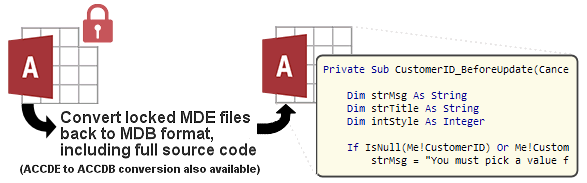
IN THE SPOTLIGHT: MDE to MDB Conversion Service
(also supports: ACCDE to ACCDB, ADE to ADP, etc)
IN THE SPOTLIGHT: Access Database Repair Service
An in-depth repair service for corrupt Microsoft Access files

IN THE SPOTLIGHT: vbWatchdog
VBA error handling just got easier...

" vbWatchdog is off the chart. It solves a long standing problem of how to consolidate error handling into one global location and avoid repetitious code within applications. "
- Joe Anderson,
Microsoft Access MVP
Meet Shady, the vbWatchdog mascot watching over your VBA code →
(courtesy of Crystal Long, Microsoft Access MVP)
IN THE SPOTLIGHT: vbMAPI
An Outlook / MAPI code library for VBA, .NET and C# projects
Get emails out to your customers reliably, and without hassle, every single time.

Use vbMAPI alongside Microsoft Outlook to add professional emailing capabilities to your projects.
IN THE SPOTLIGHT: Code Protector
Standard compilation to MDE/ACCDE format is flawed and reversible.

Download Demonstration MDB (Access 2000+) (Zipped)
Download Demonstration ACCDB [bigger form & anchoring, modified by Crystal Long] (Zipped)
(also see RowSourceType custom function video -- thanks Crystal!)
Also check out this alternative solution by Colin Riddington
Have you ever wanted to find out generic properties about a file, such as the duration length of an MP3 file, or the date a JPEG picture file was taken on a digital camera?
Windows Explorer shows us this sort of information, so surely we can tap into this facility to programmatically access these "properties"?

Note that I use the term "property" rather generically. Some information that Windows Explorer provides is calculated - e.g. the duration of an MP3 file isn't actually stored in the file, but instead is calculated from the filesize divided by the audio bitrate (for fixed bitrate files, anyway). Also, some of the displayed information comes from real properties in the file, such as MP3 ID3 tags or JPEG EXIF data. Windows Explorer properties can also originate from the filesystem, such as the shared status of the file.
Fortunately, Windows does provide mechanisms for obtaining these detailed properties directly from the Operating System.
Unfortunately, the low-level interfaces that are defined to access these properties are not VB-friendly (they don't support the IDispatch interface and therefore need an external typelibrary reference at a minimum, or preferably a small DLL written in a lower level language). As Sascha Trowitzsch points out later in the comments of this article, there is a type library already defined for helping scripting languages access some of these properties, although I have to say that the options are more limited than the solution I'm going to provide here.
Some of you reading this will be familiar with my article on Disabling the Mouse Wheel in Access Forms and know that I provided a convenient solution to including native machine code into a small VBA module which doesn't require any external references. In effect, it is like having a small DLL file contained completely within your VBA project. Hopefully you can you see where this is heading...
I have done the same here in that the sample database file contains native machine code inside a VBA code module in order to avoid you needing to distribute an extra DLL or typelibrary file with your application should you choose to use this code.
At this point, I must thank Crystal Long (Microsoft Access MVP) for the inspiration to write the code and this article. Check out her ListFiles Database that makes use of this code.

FilePropertyExplorer class is the root class. It is a self-instantiated class that contains the native machine code used throughout.
    Public Function OpenFile(FilePath As String, _
                    Optional WriteSupport As Boolean) As FileProperties
Given a valid file path, will return an object of type FileProperties. FileProperties are an enumerable collection of all the available properties for that file.
If you want to support writing to property values, you must open the file with the WriteSupport parameter set to True. This indirectly causes the property set to be more restricted (in terms of enumeration) in that you can then only enumerate direct properties of the file (for example, you won't get properties about the shared status of the file). Write-support is only applicable when run on Windows Vista or newer - in older systems, this is ignored. When the file is opened with write-support, the file is locked until the FileProperties object is released.
TIP: You do not need to declare a variable of type FilePropertyExplorer in your code. Just call FilePropertyExplorer.OpenFile() directly. See the examples below and in the provided database.
FileProperties is a collection class and supports the following members;
Property Get Item(IndexOrNameOrID) As FilePropertyIndexOrNameOrID can be an integer index (from zero to .Count-1)
IndexOrNameOrID can be a name that corresponds to FileProperty.Name
IndexOrNameOrID can be an ID that corresponds to FileProperty.IDProperty Get Count() As LongReturns the count of properties defined in the collection
This collection class supports the use of For-Each enumeration -- see examples in the following section.
FileProperty is an item class and supports the following methods;
Property Get Name() As StringReturns the system identity name of the property. e.g. "System.ItemFolderNameDisplay". This is safe to use as an identity field even on non-English systems. A handful of properties do not have a name assigned and the only method of referencing them is by the ID property.
Property Get NameDesc() As StringThis is a localized version of the name, but is not always available.
Property Get ID() As StringThis is a unique identity that can always be used to refer to the property. It consists of a GUID (identifying the property schema) followed by an integer (identifying the property index in the schema).
Property Get Value() As VariantThis is a VARIANT value respresenting the current value of the property.
TIP: This can be an array for multi-value type properties.Property Let Value(Val As Variant)This is the write method for the property Value. Requires Vista or newer.
Returns a "Permission Denied" error if the property is not writable.Property Get ValueDesc() As StringThis is a STRING value representing the current value of the property, in LOCALIZED form. Multi-value properties are already combined into a single string. Properties such as "Filesize" might return "5.6Mb", and "Frequency" might return "44khz" rather than the full raw value.
Obtaining a single property of a file:
MsgBox FilePropertyExplorer.OpenFile(Path).Item("System.ItemFolderNameDisplay").ValueObtaining a few properties of a file:
    With FilePropertyExplorer.OpenFile(Path)
        MsgBox .Item("System.ItemFolderNameDisplay").Value
        MsgBox .Item("System.ItemType").Value
        MsgBox .Item("{B725F130-47EF-101A-A5F1-02608C9EEBAC}/14").Value
    End With
Enumerating through all available properties of a file (using For-Each):
    Dim FileProp As FileProperty
    For Each FileProp In FilePropertyExplorer.OpenFile(Path)

        MsgBox FileProp.Name & ": " & FileProp.ValueDesc

    Next
Enumerating through all available properties of a file (using a While loop):
    Dim FileProps As FileProperties
    Dim FileProp As FileProperty
    Dim FilePropsCount As Long
    Dim Index As Long

    Set FileProps = FilePropertyExplorer.OpenFile(Path)
    FilePropsCount = FileProps.Count
    While Index < FilePropsCount

        Set FileProp = FileProps.Item(Index)

        MsgBox FileProp.Name & ": " & FileProp.ValueDesc

        Index = Index + 1

    Wend
Dumping all properties of a file to the immediate window
    Dim FileProps As FileProperties
    Set FileProps = FilePropertyExplorer.OpenFile(FilePath)

    ' Output header
    Debug.Print String(280, "-")
    Debug.Print "PROPERTY ID"; _
                Tab(50); " | "; "PROPERTY NAME"; _
                Tab(90); " | "; "PROPERTY NAME DESCRIPTION"; _
                Tab(130); " | "; "PROPERTY VALUE DESCRIPTION"; _
                Tab(205); " | "; "PROPERTY VALUE"
    Debug.Print String(280, "-")

    ' Enumerate through the properties
    Dim FileProp As FileProperty
    For Each FileProp In FileProps

        With FileProp

            Debug.Print .ID; _
                        Tab(50); " | "; .Name; _
                        Tab(90); " | "; .NameDesc; _
                        Tab(130); " | "; .ValueDesc; _
                        Tab(205); " | "; VarToStr(.Value)

        End With

    Next
Enjoy! If you like this code, you could always leave a comment :)
Wayne Phillips
Rate this article: 
Have your say - comment on this article.
What did you think of 'Accessing detailed file information provided by the Operating System'?
1. | Crystal says... | 01 Mar 2010 |
amazing, simply amazing. I have wanted to do this for months ... and here is such a perfect solution -- better than anything I imagined it could be. Thank you, Wayne! Warm Regards, Crystal * (: have an awesome day :) * | ||
2. | Wayne says... | 01 Mar 2010 |
Thanks Crystal! As always, you're very welcome. As you know, this was primarily written for you, but hopefully others can make use of it too. :) | ||
3. | Crystal says... | 02 Mar 2010 |
Just saw your form ... oh you are too kind! You are the genius that figured this out so fast ;) I am lucky to know you. I have a question though: Some folks will not have the new OS -- how do I test for that before I run code to get extended properties? Thanks, Wayne Warm Regards, Crystal * (: have an awesome day :) * | ||
4. | Wayne says... | 02 Mar 2010 |
Well, I wouldn't go that far ;), but thank you. If the operating system isn't supported, then OpenFile will throw an error of &H80042202 "Your operating system does not support this feature.". Therefore, you just need to catch that error. In your particular situation, I would suggest that if that particular error is thrown, don't keep calling OpenFile() for the remaining files. The reason I say this is because raising and catching exceptions is relatively slow - not noticeable for the most part, but if used in a potentially massive file search, I would aim to avoid it. Cheers, Wayne | ||
5. | Alex Dybenko says... | 02 Mar 2010 |
Cool, well done Wayne! | ||
6. | Wayne says... | 02 Mar 2010 |
Thanks, Alex! Hope you are well. | ||
7. | Larry Larsen says... | 03 Mar 2010 |
Hi.. Just what I was looking for.. I do have a small issue/bug/error with the demo, although I'm able to browse and select a file(in this case a simple jpg file) it populates the application with data, but as soon as I attempt to scroll down the list it errors out. RunTime Error 5 If I select Debug is indicates this area of code: If IsArray(Value) Then VarToStr = Join(Value, ", ") being the highlighted line. Using A2003/Vista Regards Larry | ||
8. | Wayne says... | 03 Mar 2010 |
Hi Larry, I know we've resolved this privately by e-mail, but I'll just repeat here in case anyone else has the same issue in future. You need to make sure that the VBA debugger is NOT set to "break on all errors", since the VarToStr function uses error handling to trap data types that VBA can't work with. This setting is in VBA window > Tools menu > Options > Error trapping. Kind regards, Wayne | ||
9. | Sascha says... | 05 Mar 2010 |
Hi Wayne, As always great code! (BTW: Would you mind to publish the underlying assembler listing? We never know what you have inside these NativeCode strings. ;-) ) What do you think about the following code that only refers to the Shell Library we can expect is always installed:
It works for my on any file in Vista and shows all included props. Cheers, Sascha | ||
10. | Wayne says... | 05 Mar 2010 |
Hi Sascha, Thanks -- and great find :) I haven't yet looked at your code in great detail, but from looking at the output, here are my initial observations; 1. The documentation for Folder::GetDetailsOf() is rather lacking. It doesn't indicate that we can get the property name of the property in this manner, nor does it make it very clear that it can be used to get these detailed properties. Typical... but good find. 2. Both the property name and property value appear to relate to the NameDesc and ValueDesc methods of my solution. What concerns me is that these are localized versions of the name and value -- are they outputted the same on your German locale compared to my English locale? Probably not... so we can't use that property name to uniquely identify that property across different language setups. The documentation indicates that the available properties will depend on the folder implementation, and therefore we probably shouldn't assume that the column index number is unique for that property either... (e.g. does the column index number relate to the same property on Vista and Windows 7?) Can we get the non-localized versions (System.*) using GetDetailsOf??... Since the documentation is lacking, that is anyones guess. (but maybe you know!) 3. Properties that don't have a localized name description (see my demo) aren't included in your output. 4. There's probably a better way than to have a fixed loop for enumeration. :) Cheers Wayne | ||
11. | Wayne says... | 06 Mar 2010 |
Sascha; ShellFolderItem::ExtendedProperty looks interesting. It's not enumerable, but you can pass in the ID of the property you want (which you can find by using my demo), rather than using the localized name. It also returns the non-localized version of the Value (i.e. as a Variant rather than a String). Still, I think I'd use my wrapper for the lower level APIs/interfaces since you can then reference the properties by the more meaningful system identity name, also choose whether you want localized or non-localized versions of the value, and it is optimized for enumeration and reading of multiple properties. The interfaces provided by the Shell32 typelibrary (for scripting), are a bit limited. That said, it's nice to know that there are options. The next update to my wrapper will include support for older versions of Windows, such as XP, and will be available in a week or so. | ||
12. | Sascha Trowitzsch says... | 06 Mar 2010 |
Hi Wayne, Sure that was just experimental code. I rembered there were classes in the shell automation library that could deliver similar results, so that the C interfaces are not necessary. I started from scratch because I didn't found a module I had written some years ago. ;-) It's just the result of an hour trial&error. (BTW: I do similar things sometimes to establish COM-Interfaces using VBA user defined types and calling the methods with a short assembler routine and CallWindowProc to avoid a reference to a tlb.) To 2.: Yes my output is localized. I get the german expressions with my code. On the other side what doesn't work is to use them as an input parameter: oFld.GetDetailsOf(oItm, "Abmessungen") I have to use the english locale: oFld.GetDetailsOf(oItm, "Dimensions") I also could not find any relation between the SCIDs and the ordinal columnids I use in the loop. I looked into shguids.h and some other includes, into the registry, into the Shell SDK documentation, traced the routine with proc monitor. No find. It's pretty complicated what shell does here. The only thing I found out is that the guids and expressions reside in propsys.dll and propsys.dll.mui (localized) in Vista. In propsys.dll there is a XML resource "WINDOWSPROPERTYDESCRIPTION" containing all the possible FMTIDs and PropIDs. Enough for today. ;-) "... in a week or so." I thought you were spending holidays? ;-) Don't work on this too much an have a nice week. Ciao, Sascha | ||
13. | Crystal says... | 06 Mar 2010 |
"The next update to my wrapper will include support for older versions of Windows, such as XP, and will be available in a week or so." cool! Looking forward to it! thanks, Wayne Warm Regards, Crystal * (: have an awesome day :) * | ||
14. | Wayne says... | 07 Mar 2010 |
Hey Sascha, Thanks for the info. Interesting... English locale for looking up a particular value, but German locale when enumerating the collection. Doesn't seem that much thought went into that design decision. At least at the lower API/interfaces level we've sorted that out. BTW, the column IDs are folder-dependant and are therefore not static (e.g. the "My Music" folder might return the properties in a different order to other folders). At the lower interface level, we have IShellFolder2::MapColumnToSCID which is what you really need access to at the scripting level too. ps. Nice to know you use native code in VBA too. I've used the CallWindowProc trick as well in the past... it's great for small routines. As I'm sure you appreciate, a lot of work went into the COM implementation of this design. Lots of things are coming soon that are using it... one of which is the Global Error Handler v2 :) Cheers, Wayne | ||
15. | Wayne says... | 07 Mar 2010 |
Hi Crystal, thanks -- I'll be in touch when it's ready. | ||
16. | Crystal says... | 16 Mar 2010 |
Hi Wayne, Wow ... and wow again !!! I won't have time to dig in to this for a few weeks or more, but am excited to finally build a capability into ListFiles that I thought was just a wild dream. " added XP support. " This is big! I cannot wait to test it ... but currently I am working in Win7 where the extra properties are available ... "Added very fast name resolution for looking up single props." ... as you know we will, thanks, Wayne! ~~~~~~~~~~~~~~~ Can we take this another step? ... to writing property values back? ... is this feasible? ~~~ You are a genius, Wayne Warm Regards, Crystal * (: have an awesome day :) * | ||
17. | Wayne says... | 16 Mar 2010 |
Hi Crystal, As always, thanks :) Great idea. Now, let me wave my magic wand... Check out v1.2 - adds write support for properties (Vista or newer). For example, this works fine for me on a simple MP3 file: FilePropertyExplorer.OpenFile(FilePath, True).Item("System.Title").Value = "My Test Title"Note that you must supply True to the second parameter of OpenFile in order to support writing to the value (otherwise a "permission denied" error will occur). Naturally, many properties are going to be read-only (such as calculated values), but certainly properties like MP3 tags and JPEG EXIF data should be writable. Let me know how you get on with it when you get chance! No rush though - can't wait to see your ListFiles database when it's ready. Kind regards, Wayne | ||
18. | Crystal says... | 16 Mar 2010 |
Hi Wayne, wait a minute, I have to get over my amazement ... I asked about that 5 minutes ago ... and now it is there?!? "MP3 tags and JPEG EXIF data should be writable" and those are exactly the ones I want to do for 2 of my other projects! Did I ever mention that you are truly remarkable? Thank you so much, Wayne <big smile> Warm Regards, Crystal * (: have an awesome day :) * | ||
19. | Wayne says... | 16 Mar 2010 |
You're very welcome Crystal. Most of the logic was already in place... it was just a case of connecting the dots so to speak. It actually made me shake my head in amazement that I hadn't already implemented it... "Doh!" as Homer would say. Cheers | ||
20. | Theo Callahan says... | 12 Apr 2010 |
OUTSTANDING! Thanks so much. I'm working with a surveyor (of sorts) and we were going through hell to match up GPS with pictures never knowing we could get the GPS _from_ the picture. Don't know if you know Pivot (http://www.getpivot.com) but it's great for searching/displaying pictures. It's a pain though, to input filenames, tags, etc. and this will make it much easier! Thanks! | ||
21. | Jack says... | 20 Jun 2010 |
Excellent! Way better than a DLL solution that I used previously. Any chance of extending its functionality to create the file properties? I've processed some MP3 files that lack a Title and Album. Raises an error if I try to modify the values because they don't yet exist. Also, do you know anything about MP3 Genre? Windows 7 Explorer reports a Genre for various MP3 files, but the following code snippet does not mention anything about Genre. Again, thanks for some excellent work! Sub listProps() Jack | ||
22. | Wayne says... | 21 Jun 2010 |
Thanks, Jack. Yep - that sounds like something relatively easy to fix. Although I'm pretty tied up on projects at the moment, I'll try to get to it at some point this week. With regards to the Genre property, I believe the system name is "System.Music.Genre". The reason it's not being displayed by your routine, is because the property value is an array, and your code is throwing an error (masked by the On Error Resume Next). See the VarToStr function in the example form if you want to see how to handle the array easily. Cheers, Wayne | ||
23. | Jack says... | 22 Jun 2010 |
Thanks Wayne. Worked like a champ! | ||
24. | Wayne says... | 03 Nov 2010 |
Those interested in the native code techniques used in this article, should also check out our other products that make further use of the technique: | ||
25. | Clint says... | 13 Jan 2011 |
I trying the code FilePropertyExplorer.OpenFile("c:\data\photos\family\family-1.jpg", True).Item("System.Title").Value = "My Test Title" and keep getting Permission denied error. | ||
26. | Wayne says... | 13 Jan 2011 |
As noted in the article, you can only modify the property values when you're running on Vista or Win 7. The error message you encountered means you are running on an earlier OS that does not support altering the property values. | ||
27. | Michael says... | 04 Jun 2011 |
Very useful classes! Great technology and smart implementation behind it. And easy to integrate. However, some of the properties I want from my photos are not available through these classes: the GPS info on images from my iPhone 3GS and a Sony DSC-HX5V digicam. I am thinking maybe GPS info is encoded differently and needs to be retrieved by other means. Has anyone been able to retrieve GPS info with these classes? If not, is there an alternative retrieval method for use from Access VBA? Thanks! BTW, one small mistake in the documentation above: where it says "(from zero to .Count)" should be "(from zero to .Count-1)" | ||
28. | Wayne says... | 04 Jun 2011 |
Thanks for your feedback, Michael. Glad you like it. What operating system are you on? I know that Theo in post 20 mentioned that he was able to retrieve the GPS data from his files using the classes. In it could be that the GPS data is encoded differently, but I would hope not... I would think it more likely to be an OS issue. If you can, try opening the file on a Windows 7 machine as that is the most likely operating system to support the latest fields, like GPS data. ps. Thanks, I'll get the documentation fixed to indicate .Count-1 Cheers Wayne | ||
29. | Martin says... | 03 Aug 2011 |
Hi Wayne, I am bit of a newbe in this area. I like this code very much. I can access the properties using the for each loop. The single lookup however gives a 'generic error'. MsgBox FilePropertyExplorer.OpenFile(c:\testdoc.doc).Item("System.DateCreated").ValueI verified (with for each) that the property I like to read exists as does the pathfile. Any clue? --- I am on Access 2007, VBA 6.3, Win7 | ||
30. | Wayne says... | 03 Aug 2011 |
Hi Martin, I just checked, and there was a slight problem with this, due to the changes made in v1.5. I've just released v1.6 that should fix this issue. Thanks for reporting. It may have been a typo in your post, but your path needs quotes around it like this: MsgBox FilePropertyExplorer.OpenFile("c:\testdoc.doc").Item("System.DateCreated").ValueCheers | ||
31. | Ian Higgins says... | 18 Aug 2011 |
Hi Wayne, not sure if this will help me. I'm trying to retrieve GPS longitude and latitude from GPS photos via an Access application without having to install dlls and the like. Can this product do this? I've tried to test your version 1.5, but haven't been able to as using the form to browse for a file results in an error on this line in the forms's btnOpenFile_Click event: Set m_CurrentFileProperties = FilePropertyExplorer.BrowseAndOpenFile(). The error number is #13: and description ="Type mismatch". Regards, Ian | ||
32. | Wayne says... | 18 Aug 2011 |
Hi Ian, Sorry about that. The changes made in v1.5 caused a couple of unforeseen issues, preventing the modules from working in Windows XP/2000. This has now been fixed in the latest release, so please download the updated file. As for whether or not the GPS data will be available to you, I'm not sure. I know that the information can be retrieved when running the modules in Windows 7, but I'm doubtful that Windows XP/2000 exposes it. Cheers, Wayne. | ||
33. | Wayne says... | 20 Jan 2012 |
Fair point, John, though the error handling is in place not only to catch Null, but to also catch errors resulting from VBA not being able to support the full set of data types that may be returned from the operating system (although our internal code tries to convert values to an appropriate compatible type where possible so it won't occur often). Thanks for your input though - I agree that testing for Null explicitly is more appropriate. | ||
34. | Micah says... | 28 Jun 2012 |
I was using this code successfully to capture GPS data from photos taken with a GPS camera on Access 2010 on a windows 7 machine. When I simply brought the code over to a WindowsXP machine running Access 2002, it looked like it worked, but all the System.GPS properties from the pictures were missing (among others). Same pictures, different results. Any ideas? | ||
35. | Wayne says... | 28 Jun 2012 |
Micah, This project relies on the operating system support for exposing the properties. Therefore, if the operating system doesn't expose the particular properties that you're interested in, then you won't be able to access them with this code. I developed another similar solution for extracting all the GPS data from JPEGs (regardless of operating system support) for a third-party last year. I will ask them if we can release the code (as they own all rights to it). I'll let you know what they say. | ||
36. | Micah says... | 28 Jun 2012 |
That would be awesome. either way, thank you very much for this code. It's VERY useful. | ||
37. | Wayne says... | 11 Jul 2012 |
Micah, Please find the alternative solution for extracting GPS data from JPEGs here (which works on Windows XP): Extracing GPS data from JPEG files Thanks go to Australia's North Central Catchment Management Authority for commissioning the work and allowing us to release the code publicly. Wayne. | ||
38. | Doug says... | 25 Nov 2012 |
Wayne, this looks like exactly what I need for tagging photos with copyright info via an Access database. I'm not quite sure how to use the write (Let) part. Can you whip up a quick example please? | ||
39. | Doug says... | 28 Nov 2012 |
Ahhh, read back through the comments and found the example I needed. Thanks! Superb piece of work, it will save me a lot of grief. Paypal on the way! | ||
40. | Wayne says... | 28 Nov 2012 |
Thanks Doug! Glad you got it sorted. And thanks for the donation, much appreciated. | ||
41. | Magnus says... | 08 Dec 2012 |
Thanks for a great piece of work! I´m a little bit confused (might also be because of my own limited knowledge of programming). When trying to use --> FilePropertyExplorer.OpenFile(File).Item("System.Music.Artist").Value <-- I´m also getting the error 13, Type mismatch. If I instead use --> FilePropertyExplorer.OpenFile(File).Item("System.Music.DisplayArtist").Value <-- it all works fine. Same file ofcourse. Can this be a related issue as in comment 31 above? | ||
42. | Wayne says... | 08 Dec 2012 |
Hello Magnus, No, I suspect your issue is more related to comments 21 and 22. The property value is probably an array, so you need to use something like the Join() function to take the array of strings into a simple string (see the VarToStr function included in the download). Cheers Wayne. | ||
43. | Claude says... | 23 Sep 2013 |
This is brilliant. Thank you. I had a bit of an issue with image distortion using Peter's Software's Shrinker-Stretcher code and this allowed me to fix the problem by dynamically resizing the image control according to the aspect ratio of the image being loaded. | ||
iTech Masters | VAT: GB202994606 | Terms | Sitemap | Newsletter
 Twitter

