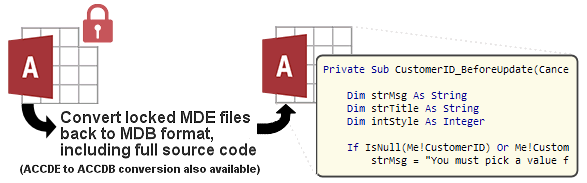
IN THE SPOTLIGHT: MDE to MDB Conversion Service
(also supports: ACCDE to ACCDB, ADE to ADP, etc)
IN THE SPOTLIGHT: Access Database Repair Service
An in-depth repair service for corrupt Microsoft Access files

IN THE SPOTLIGHT: vbWatchdog
VBA error handling just got easier...

" vbWatchdog is off the chart. It solves a long standing problem of how to consolidate error handling into one global location and avoid repetitious code within applications. "
- Joe Anderson,
Microsoft Access MVP
Meet Shady, the vbWatchdog mascot watching over your VBA code →
(courtesy of Crystal Long, Microsoft Access MVP)
IN THE SPOTLIGHT: vbMAPI
An Outlook / MAPI code library for VBA, .NET and C# projects
Get emails out to your customers reliably, and without hassle, every single time.

Use vbMAPI alongside Microsoft Outlook to add professional emailing capabilities to your projects.
IN THE SPOTLIGHT: Code Protector
Standard compilation to MDE/ACCDE format is flawed and reversible.
Provided by allenbrowne.com, June 2006, adapted from a Usenet posting by Albert Kallal. Updated January 2007.
This article illustrates how to list files recursively in VBA.
Output can be listed to the immediate window, or (in Access 2002 or later) added to a list box.
See List files to a table if you would prefer to add the files to a table rather than list box.
See DirListBox() for Access 97 or earlier.
To add the code to your database:
To list the files in C:\Data, open the Immediate Window (Ctrl+G), and enter:
Call ListFiles("C:\Data")
To limit the results to zip files:
Call ListFiles("C:\Data", "*.zip")
To include files in subdirectories as well:
Call ListFiles("C:\Data", , True)
To show the files in a list box:
Public Function ListFiles(strPath As String, Optional strFileSpec As String, _
    Optional bIncludeSubfolders As Boolean, Optional lst As ListBox)
On Error GoTo Err_Handler
    'Purpose:   List the files in the path.
    'Arguments: strPath = the path to search.
    '           strFileSpec = "*.*" unless you specify differently.
    '           bIncludeSubfolders: If True, returns results from subdirectories of strPath as well.
    '           lst: if you pass in a list box, items are added to it. If not, files are listed to immediate window.
    '               The list box must have its Row Source Type property set to Value List.
    'Method:    FilDir() adds items to a collection, calling itself recursively for subfolders.
    Dim colDirList As New Collection
    Dim varItem As Variant

    Call FillDir(colDirList, strPath, strFileSpec, bIncludeSubfolders)

    'Add the files to a list box if one was passed in. Otherwise list to the Immediate Window.
    If lst Is Nothing Then
        For Each varItem In colDirList
            Debug.Print varItem
        Next
    Else
        For Each varItem In colDirList
        lst.AddItem varItem
        Next
    End If

Exit_Handler:
    Exit Function

Err_Handler:
    MsgBox "Error " & Err.Number & ": " & Err.Description
    Resume Exit_Handler
End Function

Private Function FillDir(colDirList As Collection, ByVal strFolder As String, strFileSpec As String, _
    bIncludeSubfolders As Boolean)
    'Build up a list of files, and then add add to this list, any additional folders
    Dim strTemp As String
    Dim colFolders As New Collection
    Dim vFolderName As Variant

    'Add the files to the folder.
    strFolder = TrailingSlash(strFolder)
    strTemp = Dir(strFolder & strFileSpec)
    Do While strTemp <> vbNullString
        colDirList.Add strFolder & strTemp
        strTemp = Dir
    Loop

    If bIncludeSubfolders Then
        'Build collection of additional subfolders.
        strTemp = Dir(strFolder, vbDirectory)
        Do While strTemp <> vbNullString
            If (strTemp <> ".") And (strTemp <> "..") Then
                If (GetAttr(strFolder & strTemp) And vbDirectory) <> 0& Then
                    colFolders.Add strTemp
                End If
            End If
            strTemp = Dir
        Loop
        'Call function recursively for each subfolder.
        For Each vFolderName In colFolders
            Call FillDir(colDirList, strFolder & TrailingSlash(vFolderName), strFileSpec, True)
        Next vFolderName
    End If
End Function

Public Function TrailingSlash(varIn As Variant) As String
    If Len(varIn) > 0& Then
        If Right(varIn, 1&) = "\" Then
            TrailingSlash = varIn
        Else
            TrailingSlash = varIn & "\"
        End If
    End If
End Function
ListFiles() is the main routine. It uses a collection to demonstrate how the file names can all be collected, and then output in different ways (list box, table, immediate window.)
FillDir() does the work of looping through the files in a folder that meet the file specification, and adding them to the collection. If we are to include the subfolders as well, the second part loops through all the files again to identify those that are directories. It ignores the "." and ".." entries, uses GetAttr() to identify the directories, and adds them to the colFolders collection. Then for each of the folders in this collection, the function calls itself again to handle the files in that folder. If that folder contains subfolders also, the function will continue to call itself recursively, to whatever depth is required.
The TrailingSlash() function just ensures that the folder names we are processing end with the slash character.
| Home | Index of tips | Top |
Rate this article: 
This is a cached tutorial, reproduced with permission.
Have your say - comment on this article.
What did you think of 'List files recursively'?
1. | yosv says... | 09 May 2008 |
This was very helpful, thanks!!!!!!!! | ||
2. | panman says... | 07 Jun 2008 |
Good! It works. But how can I open the files listed in the list box directly double clicking them? | ||
3. | R4mbo says... | 04 Jan 2010 |
Thanks! | ||
4. | Piet Bouma says... | 22 Dec 2012 |
Very helpfull, works great thanks | ||
iTech Masters | VAT: GB202994606 | Terms | Sitemap | Newsletter
 Twitter

