IN THE SPOTLIGHT: MDE to MDB Conversion Service
(also supports: ACCDE to ACCDB, ADE to ADP, etc)
IN THE SPOTLIGHT: Access Database Repair Service
An in-depth repair service for corrupt Microsoft Access files

IN THE SPOTLIGHT: vbWatchdog
VBA error handling just got easier...

" vbWatchdog is off the chart. It solves a long standing problem of how to consolidate error handling into one global location and avoid repetitious code within applications. "
- Joe Anderson,
Microsoft Access MVP
Meet Shady, the vbWatchdog mascot watching over your VBA code →
(courtesy of Crystal Long, Microsoft Access MVP)
IN THE SPOTLIGHT: vbMAPI
An Outlook / MAPI code library for VBA, .NET and C# projects
Get emails out to your customers reliably, and without hassle, every single time.

Use vbMAPI alongside Microsoft Outlook to add professional emailing capabilities to your projects.
IN THE SPOTLIGHT: Code Protector
Standard compilation to MDE/ACCDE format is flawed and reversible.
If you've ever tried to send an e-mail programmatically when using Outlook 2000 SP-2 or newer, no doubt you'll have seen this message:
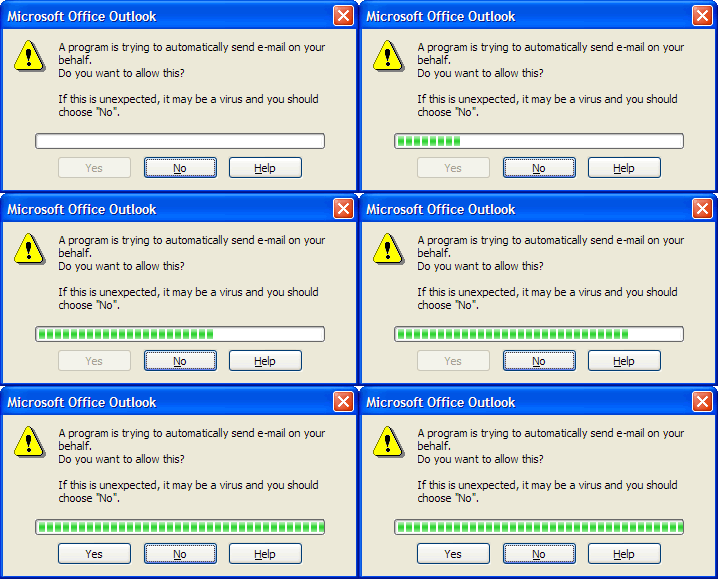
This is part of the Outlook Security Model and cannot be disabled. This restriction affects all use of Simple-MAPI including the DoCmd.SendObject method in Microsoft Access and Outlook automation.
Having this message pop up in an automated application is simply unacceptable for developers.
Fortunately there are several workarounds. Firstly, if you are developing an application in a flavor of Visual Basic (Office/VBA, VB6 or VB.NET) or C#, then you really need to check this out:
vbMAPI provides a replacement Object Model for Outlook which completely avoids the security warnings and exposes many new features. Unlike similar solutions, with vbMAPI there are no DLL files to distribute to your end users!
It comes complete with a simple SendMail routine in the online manual for you to simply copy & paste into your projects.
Read what some of our valued customers have to say about vbMAPI:
Scott McDaniel (Microsoft Access MVP) says:
"After reviewing many solutions I decided on vbMAPI and have been very pleased with my selection"
"I've used other Outlook integration utilities before, but vbMAPI was definitely the easiest to implement"
"Support is first class as well."
Bill Mosca (Microsoft Access MVP) says:
"I finally found a solution that is completely painless. vbMAPI makes life simple again."
"It all just works. And the depth of control is amazing."
"There is also a solid online help system (including sample code)"
Download the free trial of vbMAPI now (fully functional trial)
If your prefer something more challenging, there is an alternative solution for you. In short, when using Outlook 2003 or 2007, the VBA code stored inside of the VBA Project in Outlook is assumed to be trusted - this then bypasses the warning messages - and you can call this VBA code using automation of Outlook.
Using the trusted state of the Outlook VBA Project code to avoid the warning messages
Requirements
Pros
Cons
In Outlook 2003, if a MAPI MailItem object is created from within the VBA project (specifically the 'ThisOutlookSession' module), it is assumed to be "Trusted" and will not prompt the usual security messages when attempting to call the .Send method or when making use of the Outlook address book. We will be using this "Trusted" method to create an exposed Outlook VBA function that creates and sends the MailItem and then call this using Automation from our application. In our example, we will be calling the exposed Outlook VBA function from within Access. The exposed function will be called FnSendMailSafe.
Before starting, the Outlook Macro Security level must be set to LOW or MEDIUM otherwise the custom VBA function will not be exposed through automation. Furthermore, if Outlook is closed when you try to send e-mails, you will either need to set the Outlook 'Macro Security' level to LOW rather than MEDIUM, OR you can sign the VBA code with a digital certificate, otherwise you will receive a warning about unsafe macros.
Note: If you have changed the Macro Security level you must now restart Outlook.
One problem that I ran into was that when Outlook is first opened, the VBA project doesn't expose any custom VBA functions unless either a VBA event has fired, or the user has manually opened the VBA IDE. The trick I've used below is to create a blank event called Application_Startup() in the ThisOutlookSession module - this event will fire as soon as Outlook opens and so the VBA project will load properly and our function will be exposed.
Setting up the Outlook VBA code
Option Explicit

' Code: Send E-mail without Security Warnings
' OUTLOOK 2003 VBA CODE FOR 'ThisOutlookSession' MODULE
' (c) 2005 Wayne Phillips (www.everythingaccess.com)
' Written 07/05/2005
' Last updated v1.4 - 26/03/2008
'
' Please read the full tutorial here:
' https://www.everythingaccess.com/tutorials.asp?ID=Outlook-Send-E-mail-Without-Security-Warning
'
' Please leave the copyright notices in place - Thank you.

Private Sub Application_Startup()

    'IGNORE - This forces the VBA project to open and be accessible
    '         using automation at any point after startup

End Sub

' FnSendMailSafe
' --------------
' Simply sends an e-mail using Outlook/Simple MAPI.
' Calling this function by Automation will prevent the warnings
' 'A program is trying to send a mesage on your behalf...'
' Also features optional HTML message body and attachments by file path.
'
' The To/CC/BCC/Attachments function parameters can contain multiple items
' by seperating them with a semicolon. (e.g. for the strTo parameter,
' 'test@test.com; test2@test.com' would be acceptable for sending to
' multiple recipients.
'
Public Function FnSendMailSafe(strTo As String, _
                                strCC As String, _
                                strBCC As String, _
                                strSubject As String, _
                                strMessageBody As String, _
                                Optional strAttachments As String) As Boolean

' (c) 2005 Wayne Phillips - Written 07/05/2005
' Last updated 26/03/2008 - Bugfix for empty recipient strings
' www.everythingaccess.com
'
' You are free to use this code within your application(s)
' as long as the copyright notice and this message remains intact.

On Error GoTo ErrorHandler:

    Dim MAPISession As Outlook.NameSpace
    Dim MAPIFolder As Outlook.MAPIFolder
    Dim MAPIMailItem As Outlook.MailItem
    Dim oRecipient As Outlook.Recipient

    Dim TempArray() As String
    Dim varArrayItem As Variant
    Dim strEmailAddress As String
    Dim strAttachmentPath As String

    Dim blnSuccessful As Boolean

    'Get the MAPI NameSpace object
    Set MAPISession = Application.Session

    If Not MAPISession Is Nothing Then

      'Logon to the MAPI session
      MAPISession.Logon , , True, False

      'Create a pointer to the Outbox folder
      Set MAPIFolder = MAPISession.GetDefaultFolder(olFolderOutbox)
      If Not MAPIFolder Is Nothing Then

        'Create a new mail item in the "Outbox" folder
        Set MAPIMailItem = MAPIFolder.Items.Add(olMailItem)
        If Not MAPIMailItem Is Nothing Then

          With MAPIMailItem

            'Create the recipients TO
                TempArray = Split(strTo, ";")
                For Each varArrayItem In TempArray

                    strEmailAddress = Trim(varArrayItem)
                    If Len(strEmailAddress) > 0 Then
                        Set oRecipient = .Recipients.Add(strEmailAddress)
                        oRecipient.Type = olTo
                        Set oRecipient = Nothing
                    End If

                Next varArrayItem

            'Create the recipients CC
                TempArray = Split(strCC, ";")
                For Each varArrayItem In TempArray

                    strEmailAddress = Trim(varArrayItem)
                    If Len(strEmailAddress) > 0 Then
                        Set oRecipient = .Recipients.Add(strEmailAddress)
                        oRecipient.Type = olCC
                        Set oRecipient = Nothing
                    End If

                Next varArrayItem

            'Create the recipients BCC
                TempArray = Split(strBCC, ";")
                For Each varArrayItem In TempArray

                    strEmailAddress = Trim(varArrayItem)
                    If Len(strEmailAddress) > 0 Then
                        Set oRecipient = .Recipients.Add(strEmailAddress)
                        oRecipient.Type = olBCC
                        Set oRecipient = Nothing
                    End If

                Next varArrayItem

            'Set the message SUBJECT
                .Subject = strSubject

            'Set the message BODY (HTML or plain text)
                If StrComp(Left(strMessageBody, 6), "<HTML>", _
                            vbTextCompare) = 0 Then
                    .HTMLBody = strMessageBody
                Else
                    .Body = strMessageBody
                End If

            'Add any specified attachments
                TempArray = Split(strAttachments, ";")
                For Each varArrayItem In TempArray

                    strAttachmentPath = Trim(varArrayItem)
                    If Len(strAttachmentPath) > 0 Then
                        .Attachments.Add strAttachmentPath
                    End If

                Next varArrayItem

            .Send 'The message will remain in the outbox if this fails

            Set MAPIMailItem = Nothing

          End With

        End If

        Set MAPIFolder = Nothing

      End If

      MAPISession.Logoff

    End If

    'If we got to here, then we shall assume everything went ok.
    blnSuccessful = True

ExitRoutine:
    Set MAPISession = Nothing
    FnSendMailSafe = blnSuccessful

    Exit Function

ErrorHandler:
    MsgBox "An error has occured in the user defined Outlook VBA function " & _
            "FnSendMailSafe()" & vbCrLf & vbCrLf & _
            "Error Number: " & CStr(Err.Number) & vbCrLf & _
            "Error Description: " & Err.Description, _
                vbApplicationModal + vbCritical
    Resume ExitRoutine

End Function
Test the Outlook code
At this point, I would recommend testing the code by sending a test e-mail from the Outlook Immediate window (Ctrl+G shortcut):
?ThisOutlookSession.FnSendMailSafe("youremailaddress@here.com","","","Test","Test")
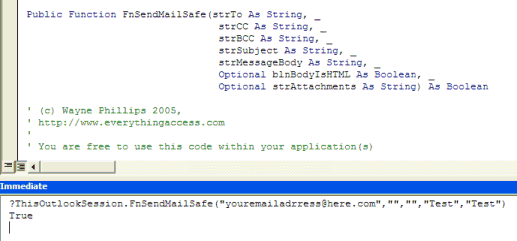
Once you've confirmed that you have installed the VBA code correctly, it's time for the Access OLE automation...
Calling our Outlook VBA function from within Access VBA code
Option Explicit

' ACCESS VBA MODULE: Send E-mail without Security Warning
' (c) 2005 Wayne Phillips (www.everythingaccess.com)
' Written 07/05/2005
' Last updated v1.3 - 11/11/2005
'
' Please read the full tutorial & code here:
' https://www.everythingaccess.com/tutorials.asp?ID=Outlook-Send-E-mail-Without-Security-Warning
'
' Please leave the copyright notices in place - Thank you.

' This is a test function! - replace the e-mail addresses
' with your own before executing!!
' (CC/BCC can be blank strings, attachments string is optional)

Sub FnTestSafeSendEmail()
    Dim blnSuccessful As Boolean
    Dim strHTML As String

    strHTML = "<html>" & _
               "<body>" & _
               "My <b><i>HTML</i></b> message text!" & _
               "</body>" & _
               "</html>"
    blnSuccessful = FnSafeSendEmail("myemailaddress@domain.com", _
                                    "My Message Subject", _
                                    strHTML)

    'A more complex example...
    'blnSuccessful = FnSafeSendEmail( _
                        "myemailaddress@domain.com; recipient2@domain.com", _
                        "My Message Subject", _
                        strHTML, _
                        "C:\MyAttachFile1.txt; C:\MyAttachFile2.txt", _
                        "cc_recipient@domain.com", _
                        "bcc_recipient@domain.com")

    If blnSuccessful Then

        MsgBox "E-mail message sent successfully!"

    Else

        MsgBox "Failed to send e-mail!"

    End If

End Sub


'This is the procedure that calls the exposed Outlook VBA function...
Public Function FnSafeSendEmail(strTo As String, _
                    strSubject As String, _
                    strMessageBody As String, _
                    Optional strAttachmentPaths As String, _
                    Optional strCC As String, _
                    Optional strBCC As String) As Boolean

    Dim objOutlook As Object ' Note: Must be late-binding.
    Dim objNameSpace As Object
    Dim objExplorer As Object
    Dim blnSuccessful As Boolean
    Dim blnNewInstance As Boolean

    'Is an instance of Outlook already open that we can bind to?
    On Error Resume Next
    Set objOutlook = GetObject(, "Outlook.Application")
    On Error GoTo 0

    If objOutlook Is Nothing Then

        'Outlook isn't already running - create a new instance...
        Set objOutlook = CreateObject("Outlook.Application")
        blnNewInstance = True
        'We need to instantiate the Visual Basic environment... (messy)
        Set objNameSpace = objOutlook.GetNamespace("MAPI")
        Set objExplorer = objOutlook.Explorers.Add(objNameSpace.Folders(1), 0)
        objExplorer.CommandBars.FindControl(, 1695).Execute

        objExplorer.Close

        Set objNameSpace = Nothing
        Set objExplorer = Nothing

    End If

    blnSuccessful = objOutlook.FnSendMailSafe(strTo, strCC, strBCC, _
                                                strSubject, strMessageBody, _
                                                strAttachmentPaths)

    If blnNewInstance = True Then objOutlook.Quit
    Set objOutlook = Nothing

    FnSafeSendEmail = blnSuccessful

End Function
Hope this helps people like me that find this 'security feature' more of a 'PITA' :)
Wayne Phillips
Rate this article: 
Have your say - comment on this article.
What did you think of 'Outlook Send E-mail Without Security Warning'?
1. | Guilherme says... | 19 Mar 2008 |
Hi there Wayne, You are the man ! Excellent ! Thanks a lot. Guilherme From Brazil | ||
2. | Kelly Wornell says... | 03 Apr 2008 |
Thanks Wayne, Everything worked great. One small issue i was able to insert my own variables everywhere except: strHTML = "<html>" & _ "<body>" & _ "My <b><i>HTML</i></b> message text!" & _ "</body>" & _ "</html>" This not only won't allow me to insert a variable (I used Public as they carry over to a second routine, if I delete the HTML formating, it removes the concatenations in my vaiable such as vbCrLf in my variable. mailText = mailGreet & " " & mailName & _ "," & vbCrLf & vbCrLf & mailBody & _ vbCrLf & vbCrLf & mailSig Is there anything I can do? Thanks again! Kelly Wornell | ||
3. | Wayne Phillips says... | 04 Apr 2008 |
Kelly... If you're using the code supplied, then it should work fine. Don't forget that if you're using global variables, you need to ensure the variable is truly global by putting it in a standard module (not a form/report class module for example). As for the line-feeds going missing, you should check it's not Outlook that is removing what it thinks are redundant line-feeds. Check the Outlook setting: Tools menu > Options > Preferences tab > E-mail options button > 'Remove extra line breaks in plain text messages'. HTH | ||
4. | RossWindows says... | 16 Apr 2008 |
I'm exporting records from Access via MailMerge for Word using the TransferText option in Access. From there I have a word document that e-mails the records via MailMerge. How can I adapt the code above to work around the security dialog? | ||
5. | HU says... | 18 Apr 2008 |
Good! Thank you very much. | ||
6. | Chris H says... | 18 Apr 2008 |
Hi -- This is a most excellent and useful function, and I'm using it for many automated routines. I have a question: I currently have two accounts in Outlook. I can usually select which account I want to send from manually by selecting the Accounts pulldown in my outgoing mail. But how can I get the automation to send from the "other" account? It sends from my primary account, but I don't want anyone replying to that account. Basically I want a different reply-to in my outgoing message. How is this done? Thanks in advance for your advice! | ||
7. | Wayne Phillips says... | 18 Apr 2008 |
Chris... There's no easy way for this, unfortunately. It can be done easily in low level languages by querying the OlkAccountManager class exposed by Outlook - enumerating the accounts to find the account stamp and then set a couple of specific custom properties on the e-mail object before sending it, which would then force it through the specified account. At the moment, in VB/VBA, you are a bit stuck. We have a product (a set of VBA modules) that will be released soon for a small fee that DOES offer this ability as well not requiring ANY code to be put inside of the Outlook VBA project. Furthermore it doesn't require any external DLL files to bypass the warning messages. If people are interested in this product, please express your interest by leaving a message below. Due to being exteremely busy at the moment, development on this product is slow. The more interest I get, the more time I can put into it and the quicker I can then release the product. | ||
8. | Chris H says... | 18 Apr 2008 |
Thanks -- yes I'd be interested in your new product when it comes out. For now I'm circumventing my problem by using rules -- if someone replies to one of my outgoing automated messages, it will detect that and automatically either redirect it to my other account or move it into my other inbox. Thanks for your help! | ||
9. | Robert Carlei says... | 21 Apr 2008 |
Thankyou I am so happy that I fixed this problem good on you | ||
10. | Mark B says... | 24 Apr 2008 |
Fantastic, works like a dream. I would be interested in the VBA modules if it means bypassing the Outlook VBA project | ||
11. | Kirubashankar says... | 29 Apr 2008 |
Hi, Its great and sloved my problem. | ||
12. | Stephen Gsell says... | 29 Apr 2008 |
Wayne Saying thanks seems too little. I had Excel vba code to 'send' emails but could not kill the popup box. This solution is great. | ||
13. | Sarah says... | 30 Apr 2008 |
Thank you so much for sharing. It worked like a charm. | ||
14. | Tony H says... | 03 May 2008 |
Thank you, thank you, thank you! | ||
15. | david says... | 09 May 2008 |
Great job. How can I send an email to a GROUP in my contact list? Thanks. And again, GREAT JOB! | ||
16. | Raf says... | 13 May 2008 |
This is great - thanks so much! Is it correct to assume that the code you listed for Access VBA would work just as well in Excel? Anyone try this with Office 2007? | ||
17. | Suvabrata Mitra says... | 18 May 2008 |
Words are not enough for your wonderful contribution. You are "He Man". | ||
18. | james says... | 20 May 2008 |
I'm interested in your email product too. Thanks for the great code- i'm going to try it soon. | ||
19. | Jerome Demers says... | 22 May 2008 |
It works perfectly, this is pretty cool! Thank you! Jérôme Québec, Canada | ||
20. | Cristiano says... | 31 May 2008 |
Wayne, Congratulations for the great job! You are "the man"! God bless you! Thank you very much! Cris from Brazil | ||
21. | Frank Dunn says... | 01 Jun 2008 |
Beautiful. I appreciate professionally written code and congratulate you on the proper demonstration of Error Handling... something that is all too often overlooked... plus the 'white space' and indentation in your code. Good Stuff !! I needed this solution for an Excel Application and your code worked perfectly. Good Job ! Frank Dunn Portland, Oregon | ||
22. | Vincent Vega says... | 03 Jun 2008 |
Beautiful job dude. Thanks. | ||
23. | jem says... | 03 Jun 2008 |
Gracias buen codigo desde Chile in the mix | ||
24. | David says... | 05 Jun 2008 |
I've copied/pasted the code into Outlook and it functioned as it should in the immediated window, Copied/pasted code into Access. I get the error message "Object doesn't support this property or method" at the line " blnSuccessful = objOutlook.FnSendMailSafe(strTo, strCC, strBCC, strSubject, strMessageBody, strAttachmentPaths)" in FnSendMailSafe. I went ahead and included a reference to MS Outlook but still have the same error. Any suggestions? | ||
25. | kiran says... | 06 Jun 2008 |
Hi, The code which is provided above is VBA, its giving error in VB6. So,Could you please provide the code for VB6. | ||
26. | Vernon says... | 06 Jun 2008 |
@David: You need to follow the instructions given. You must set Outlook Macro Security level to low, and then restart Outlook. You don't need a reference to MS Outlook since it uses late-binding code. | ||
27. | Vernon says... | 06 Jun 2008 |
@Kiran: There is no VBA specific code in this article, so it will work just as well in VB6. Copy the Outlook VBA code into Outlook exactly as the article says. Then when it says to copy the second bit of code into Access VBA, instead copy it into a VB6 standard module. | ||
28. | sam slade says... | 09 Jun 2008 |
Plugged this baby into my project last month and after a few bits of testing, it works a treat. I'm using it as a Excel to Access to Outlook combo | ||
29. | Finn Nohr says... | 12 Jun 2008 |
Thank you very much Wayne! I've been annoyed about this problem for so long. It helps me a great deal. Would it be possible to put the code into a new Module in Outlook instead of ThisOutlooksession? | ||
30. | PaulSH says... | 13 Jun 2008 |
Hi, I have been using this code successfully for a couple of years now. I email 16,000 emails every Thursday in the form of a newsletter and it work great. I previously used this in Access 2003 with Outlook 2003 but now do so using the 2007 products (successfully!) Thanks you very much. My Question is: How can I change the code to send a multipart email (Text & HTML) This would be a great addition. Regards Paul | ||
31. | Wayne Phillips says... | 13 Jun 2008 |
@Finn... In order for the function to be accessible via Automation, the code must go in the ThisOutlookSession module. As far as I'm aware, there is no way around this. | ||
32. | Wayne Phillips says... | 13 Jun 2008 |
@PaulSH... Thanks for your feedback. I don't think it's possible to do this in the pure Outlook Object Model since it always keeps the Body and HTMLBody properties in sync. The easiest solution for this would be to use redemption instead. | ||
33. | METTE says... | 13 Jun 2008 |
Hi Wayne. I my emails sent from access have different excel spreadsheets attached to different email addresses, I am not sure how to go about altering the macro to get it to work Any help would be appreciated. Thanks M | ||
34. | TG says... | 27 Jun 2008 |
Wayne Phillips. You are the man. Let the force be always with you | ||
35. | Rob says... | 17 Jul 2008 |
Thanks for the code mate, much appreciated! | ||
36. | Gert says... | 22 Jul 2008 |
Hi Wayne, thank you so much for this great piece of code!!! I have been struggling with this stuff for really quite some time, and I just got quite an ugly solution (expressclickyes, which works, but really looks weird). Thanks to you I can now create highly personalized reports in Access, print the individual information to a pdf and NOW FINALLY just smoothly send it to whomever I want. I just followed your instructions, copied and pasted your code. The only think I had to adjust was the email address in the test routine ;-) Dude, you are amazing, thank you so very much!! | ||
37. | Sandeep says... | 25 Jul 2008 |
Will this work in excel also? | ||
38. | Tiago says... | 30 Jul 2008 |
Greetings Wayne First of all, I want to thank you for this great job. It sure helped a lot, when I did some automatic processes. Just one little question: While testing this code, I noticed he doesn't assume the signature (when generating the e-mail) that you have created in Outlook. So, if I have a automatic signature in Outlook (Tools -> Options -> Tab "Mail format" -> Signatures) is it possible (in your code) to give "permission" to appear after the message body? I would be grateful if you can help me on this issue. Thank you! | ||
39. | Joee says... | 03 Aug 2008 |
Hi Wayne, Your code is so great. But how can I automate this macro by using "scheduled tasks" on Windows? Appreicate your promtely reply. | ||
40. | Wayne Phillips says... | 06 Aug 2008 |
@Sandeep: Yes, this solution will work from any VBA app. (actually, any COM compatible development environment) @Tiago: One way might be to find and read the default signature file into a string. For example, on my machine, the signature files are stored in: C:\Documents and Settings\Wayne\Application Data\Microsoft\Signatures\ (you will notice there are .txt, .htm and .rtf versions of the signature) You can get the "C:\Documents and Settings\Wayne\Application Data\" local user directory from the Windows API using the SHGetSpecialFolderLocation function with argument CSIDL_APPDATA. There might be better solutions though - do a google search. @Joee: What are you trying to achieve? Sending e-mails in batches (e.g. once per day)? If so, you need to create an Access database with the AutoExec macro to run the code (and then quit) - you would then set this database to open in your scheduled task. HTH | ||
41. | Dan says... | 12 Aug 2008 |
I use this to send out 54 different reports to 54 different people every month at the click of a button! Great work! :) | ||
42. | Swapna says... | 16 Aug 2008 |
It works great but how can I automate this macro by using 'scheduled tasks' on Windows XP? Any help would be appreciated. Thank You. | ||
43. | Mardi says... | 18 Aug 2008 |
Hi Thanks again for sharing this. It is fantastic. I have been able to use this code successfully but somehow today i have the following error when i tried to test the product "The macros in this project are disabled. PLease refer to the online help...." And I have set Excel macro to LOW and Outlook macro to LOW as well. May I know what cause the problem? Again, thank you again for the great work. | ||
44. | Zygmunt Dean says... | 19 Aug 2008 |
Hello Wayne, Many thanks for this code, it works an absolute treat! Our regular 400-email 3-hour hands-on job now takes 20 minutes while we go away and have a cuppa. Nice one (we owe you a pint)! One small prob - although I have Outlook set-up not to request Read Receipts (since there's too many of them, plus other issues I won't bore you with here) the system seems to still be requesting them when using the code, although they don't appear for ordinary emails. Ideally I'd prefer the opposite - request Read Receipts for normally-created emails but reject them for bulk jobs. Is there any code I can add to yours to ensure I don't get Read Receipts? Very many thanks for your help, Zygmunt Dean. | ||
45. | Marcelo says... | 19 Aug 2008 |
Hi Wayne, Great job! But, would like to now there is a way to include your code automatically in outlook 2003 via VB6 or Access VBA... Thanks! Marcelo from Brazil | ||
46. | Mike O'Brien says... | 21 Aug 2008 |
Hey! Great code, works like a charm all the way through! I was just wondering if its possible to set the font style of a message without using HTML? | ||
47. | Bruno says... | 22 Aug 2008 |
Hello, I look for a function like that for weeks. It's perfect for my use. Thanks a lot | ||
48. | Wayne Phillips says... | 22 Aug 2008 |
@Zygmunt Dean: You're very welcome. Check out Discussion: Setting item.ReadReceiptRequested where read receipts are discussed. @Marcelo: To distribute the code you might consider copying over the VbaProject.OTM file from your machine to clients. Do a google search for VbaProject.OTM for more info. @Mike O'Brien: No. The .Body property is plain text only (no formatting). Very straight forward to wrap the whole string with a font/span HTML tag though. Thanks for all the great comments - sorry for my slow responses lately due to being rather busy!! | ||
49. | Carlos says... | 22 Aug 2008 |
Hi Wayne! Your code worked perfectly, very good! But still am with a doubt, how to insert this code in MS Outlook 2003 using Visual Basic 6 or Access2000 VBA? | ||
50. | Marcelo says... | 22 Aug 2008 |
Thanks Wayne! It's work fine!! | ||
51. | Dave says... | 29 Aug 2008 |
Wayne - Your code rocks! Nothing more to say that hasn't already been said. I would be interested in your VBA moudules should they become available. Thanks a billion. | ||
52. | Wayne Phillips says... | 02 Sep 2008 |
Thanks Dave :) To all those that are interested in the pure VB / VBA solution (without the need to set up this routine in Outlook VBA) - the product will be released under our new SimplyVBA product range in approximately 5-6 weeks time. News | ||
53. | Winni says... | 04 Sep 2008 |
Wayne, Great! 8-) I just put it in our Excel file and it worked straight away! | ||
54. | Al says... | 04 Sep 2008 |
This was a great help. Worked on the first try. Thanks. I had been working on this for a couple of weeks. | ||
55. | LeeD says... | 08 Sep 2008 |
Wayne, Really appreicate your fine coding efforts, we had been trying to crack this for months, keep up the great work! Lee, UK | ||
56. | Owen says... | 23 Sep 2008 |
Thank-you very much! You've just saved me several hours of developing this myself. | ||
57. | Martyn says... | 01 Oct 2008 |
Is there any firm date on when the VB/VBA solution will be released? Thanks! | ||
58. | Stephen says... | 02 Oct 2008 |
An excellent chunk of code. Works like a dream. I would be interest in the Outlook VBA Project to be able to sent the reply-to email. Any dates yet? | ||
59. | Wayne Phillips says... | 02 Oct 2008 |
Thanks to all for all the great comments. RE: release date on the VB/VBA solution. The product will be released within the next two weeks. :) | ||
60. | Fred Crisostomo says... | 09 Jan 2010 |
Thanks Wayne. A great piece of code. I have implemented to send email notification whenever a new record is entered in the database (AfterInsert Event). Thanks again. | ||
61. | Lance Broderick says... | 13 Jan 2010 |
This code works great, although I have at least one user's computer who's Outlook keeps reverting the Macro Security Level back to "High" each day. Aside from that, WOW! This is very flexible and can be deployed world wide. | ||
62. | Siem Eikelenboom says... | 01 Feb 2010 |
Wow! This is what I've been looking for a long time ago. Thanks from The Netherlands! | ||
63. | Michael @ Cardiff, Wales says... | 29 Apr 2010 |
Many thanks Wayne, This not only removes that PITA but also frees up so much of my daily schedule as I can now run a lot of scheduled tasks overnight. | ||
64. | Steve Elliott says... | 15 May 2010 |
I found this yesterday while looking for solutions with a program I'm busy with. So quick and easy. I had it going in less than an hour. (and this is the first VB I'm writing for a few years). Many thanks ! Steve | ||
65. | Matt says... | 27 May 2010 |
Thanks for the great code. However, I got an error in Outlook saying "Outlook does not recognise one or more names". Any help would be appreciated. Thanks again! | ||
66. | Matt says... | 27 May 2010 |
^Disregard my previous comment, figured out myself already. Looks like I didn't include an email/distribution list on Access' code. Cheers. | ||
67. | Russell says... | 28 May 2010 |
Fantastic piece of code! I look forward to your VBA modules. Thanks | ||
68. | Wayne says... | 28 May 2010 |
Hi Russell, thanks for your comments. The VB modules are available in this product (that doesn't require you to copy any code into Outlook) here: vbMAPI - Outlook Security Evader Thanks! | ||
69. | Bernie says... | 15 Jun 2010 |
AMAZING!!!! At long last, after searching many, many, many posts over teh past 16 months; alas! Wayne, You are the MAN!!! Gunner | ||
70. | Tim Getsch says... | 15 Jun 2010 |
Has anyone tried this with Outlook 2010? I just upgraded, and this technique seems to have stopped working. The call to objOutlook.FnSendMailSafe(...) throws an "Object doesn't support this property or method" error. I am hunting for a workaround. | ||
71. | Lino says... | 17 Jun 2010 |
Hello, I'm having problems with this code in Office 2010, have you tested? in 2007 was ok. thanks Lino (Portugal) | ||
72. | Wayne says... | 20 Jun 2010 |
Sorry guys, this is untested in Outlook 2010. If you want a solution that is definitely compatible with Outlook 2010, then I suggest you check out vbMAPI (which happens to be a much easier solution as well since there is no extra code needing to be added to your Outlook VBA project). | ||
73. | Eleandro says... | 29 Jun 2010 |
You are great! Your solution is wonderfull! I have spent a cople of days trying to send emails without security warning. Thank you very much! Eleandro from Brazil | ||
74. | Shredder says... | 05 Jul 2010 |
Hi Wayne!! I am getting an error message "Object doesn't support this method or property" on the following line: blnSuccessful = objOutlook.FnSendMailSafe(strTo, strCC, strBCC, _ strSubject, strMessageBody, _ strAttachmentPaths) I have checked for the Trust centre settings in Access as well as Outlook, and its already set to low. Kindly advise, this is really important and urgent for me. Thank you very much. P.S: I am using 2010 for both access and outlook | ||
75. | Nick says... | 06 Jul 2010 |
Thanks a lot for posting this Wayne. Half an hour ago I was crapping myself because I desparately needed a solution for this by tomorrow morning and my "Outlook Redemption" based solution has stopped working with no error message or anything. Pasted your code, adapted it to my purposes, and I'm crapping myself no more... I salute you sir! Nick | ||
76. | Wayne says... | 06 Jul 2010 |
@Eleandro... thanks for your comments. @Shredder... sorry, this is untested in Outlook 2010. Please see previous comments - others were also having issues using this in Outlook 2010, so I assume that this workaround is now being restricted by the Outlook 2010 security model. Check out vbMAPI Outlook Security Evader which most definitely supports Outlook 2010. @Nick... You're most welcome. Thanks for your comments. | ||
77. | Must says... | 18 Aug 2010 |
Thank's a lot, you are great!!! | ||
78. | Chris says... | 14 Sep 2010 |
Love the idea and thanks for taking the time to post it...but I can't get it to work in Outlook/Access 2007. I'm sure it's something silly I'm forgetting to do. I've copied and pasted the code into Outlook and Access, replaced the fake email address with my own and then tried to run the function via a macro (runcode). I tell it to run FnSafeSendEmail()but just get a message stating "The expression you entered has a function containing the wrong number of arguments". What am I missing? | ||
79. | Chris says... | 14 Sep 2010 |
doh, I figured it out...sorry for the false alarm. Thanks for the code...this is wonderfully helpful now our company has just migrated to Outlook. | ||
80. | Johan vd Kuilen says... | 17 Sep 2010 |
@Wayne... Awesome piece of sharing!! The above code is not using the plain formatting cause it throws errors within plain text depended .jsp. I've added the line: .BodyFormat = olFormatPlain to make sure the outgoing message is Plain formatting. Works like a charm (Office 2007). Also the ougoing message should not be saved within Sent items. Adding: MAPIMailItem.DeleteAfterSubmit = True will do the job. Anyway, you've saved me hours and the least I can do is say BEDANKT!! (THANKS in dutch) | ||
81. | hy.paiton says... | 16 Oct 2010 |
Wayne..., You are really the man. You end my three days suffering. warm regards from Indonesia. | ||
82. | Mike says... | 18 Oct 2010 |
Thanks a million for this code. This is one that has had me scatching my head for ages but your code works a treat. Thanks again. | ||
83. | nikos says... | 22 Oct 2010 |
Great Code.. I have one issue though..it fails when an outlook instance isn't open. The e-mail remains in the outbox. Any thoughts? | ||
84. | Wayne says... | 20 Jul 2010 |
Sorry John, the only option is to use DoCmd.OutputTo to save the file first, and then pass the path as an argument to the function. | ||
85. | Wayne says... | 03 Nov 2010 |
Hi John, You can't pass Null to a string argument, so you need to convert the Null to a zero length string instead. Passing Nz(VarName, "") is the common way to deal with it. Wayne | ||
86. | Simon says... | 03 Nov 2010 |
Great piece of code. Do you know whether there is a way to change the From field? I am assigned to a couple of mailboxes, as well as my own. Ideally I'd like to send the e-mails from the mailboxes e-mail address rather than my own. | ||
87. | Monica says... | 03 Nov 2010 |
Hi Wayne, You, my friend, are a genius!! Thanks so much for this beautiful code! I've been struggling with this for a while. So, I'm very happy to have found this site. Thanks again! | ||
88. | David says... says... | 11 Nov 2010 |
You da man! Rock on. | ||
89. | pol says... | 16 Dec 2010 |
Great job Wayne! Solved my problem :) keep up!!! | ||
90. | Justin says... | 17 Dec 2010 |
Fabulous. Rusty after years not having had to deal with this and googling for a Redemption example I stumbled across this and love it, just love it. Can't say thanks enough. | ||
91. | Roy says... | 10 Jan 2011 |
Am trying to get this code to work in Access 2010 and Outlook 2010 and am repeatedly receiving error 438 in Access (Object doesn't support this property or method). Macro security in Outlook 2010 is set to ENABLE ALL MACROS (scary) as there is no more HIGH, MEDIUM, and LOW macro security settings anymore in 2010. Any ideas on how to get Access to recognize that FnSendMailSafe is a valid Outlook object in 2010? | ||
92. | Steph says... | 21 Jan 2011 |
Hi, Wayne! I have a Word 2003 document which has a macro that will send the document to an Outlook 2003 email distribution list when the "SendFormAsAttachment" button is clicked. The document is used by several hundred individuals. Would your code have to be added to every individual's Outlook account in order for the code to work? If so, do you know of another way to avoid that annoying Microsoft Office Outlook warning box? Thanks! | ||
93. | Wayne says... | 10 Jan 2011 |
Roy, as others have already noted here, this code does not work in Oulook 2010. Instead, consider the more professional solution, vbMAPI: vbMAPI.htm | ||
94. | Wayne says... | 21 Jan 2011 |
Steph, Indeed, this solution requires you to copy & paste the modules into each users Outlook VBA project. Instead, consider vbMAPI which requires absolutely no installation on end user machines: vbMAPI.htm | ||
95. | Ian says... | 15 Feb 2011 |
Hi Wayne, I've been using your wonderful code in Excel for a while now (copyrights still in place!). Last week I installed Outlook 2010 and no prizes for guessing it's taken a turn for the worse! For some reason I get an error 438 saying the object does not support this property or method. I've had this message before and it was usually because an update had messed with the Outlook VBA settings so I'm fairly sure it's Outlook this time - especially given the new Outlook last week. Any ideas? Many thanks | ||
96. | Wayne says... | 15 Feb 2011 |
Hi Ian, Sorry, this solution is not compatible with Outlook 2010. I would suggest checking out vbMAPI, which is much simpler to use in the long run. If you need any help in implementing vbMAPI, just drop me an e-mail (my name @ everythingaccess.com) Cheers Wayne | ||
97. | Danny says... | 16 Nov 2011 |
Wayne, thanks so much for sharing this code. It has helped me tremdously in my company's conversion from Lotus Notes to Outlook 2003. Thanks, Danny | ||
98. | Shane says... | 09 Mar 2012 |
Is there a way the code that goes into Outlook can be automatically added from Access? The database that uses this will be used by a number of people and our computers get replaced every few years, so instead of having to add this in manually everytime a new person comes in or a computer gets replaced it would be nice to get Access to do it. | ||
99. | Wayne says... | 09 Mar 2012 |
Hi Shane, It's unlikely you'd be able to do that with the VBA extensibility library due to the need to lower the security settings first etc. One way might be to copy over the VBAPROJECT.OTM file that holds the Outlook VBA project code, to each machine... but... I wouldn't bother though as there are many potential problems. If you don't want to have to bother setting up Outlook on each PC, then consider using vbMAPI instead (linked in this article) - it will be _much_ simpler in the long run as it requires no end user installation nor any third party DLLs. | ||
100. | Padhraig says... | 14 Dec 2012 |
Thanks Wayne I have been developing database applications using MS Access since 1993. I have been using vbMAPI since November 2010. It is important to me to be able to develop native MS Access solutions that do not rely on external references. vbMAPI is a very elegant and extremely cost effective solution. I highly recommend it. Thanks Pádhraig Ottawa | ||
101. | Robert Wojcik says... | 12 Aug 2013 |
This is awesome. It works liek a charm when you programming yur app to send > 100 email with reports every moring. | ||
102. | Khan says... | 08 Nov 2013 |
Thanks good work | ||
TWINBASIC LTD (Company No. 16590181, VAT No. GB497509439)
Terms | Privacy | Sitemap | X (Twitter)


