IN THE SPOTLIGHT: MDE to MDB Conversion Service
(also supports: ACCDE to ACCDB, ADE to ADP, etc)
IN THE SPOTLIGHT: Access Database Repair Service
An in-depth repair service for corrupt Microsoft Access files

IN THE SPOTLIGHT: vbWatchdog
VBA error handling just got easier...

" vbWatchdog is off the chart. It solves a long standing problem of how to consolidate error handling into one global location and avoid repetitious code within applications. "
- Joe Anderson,
Microsoft Access MVP
Meet Shady, the vbWatchdog mascot watching over your VBA code →
(courtesy of Crystal Long, Microsoft Access MVP)
IN THE SPOTLIGHT: vbMAPI
An Outlook / MAPI code library for VBA, .NET and C# projects
Get emails out to your customers reliably, and without hassle, every single time.

Use vbMAPI alongside Microsoft Outlook to add professional emailing capabilities to your projects.
IN THE SPOTLIGHT: Code Protector
Standard compilation to MDE/ACCDE format is flawed and reversible.
The information below applies only to the VB6 edition of the global error handler (SimplyVB6 Global Error Handler)
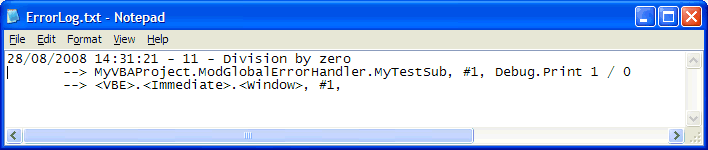
To demonstrate how to enable and disable the SimplyVB6 Global Error Handler, let's create a simple example application. We will add a global error handler to your application that simply logs all errors that occur to a text file.
Create a new VB6 EXE application and go to the Project >> References... menu option.
(Alternatively, you can go do this with the Add-Ins >> SimplyVB6 Global Error Handler >> Setup normal COM library DLL support option)
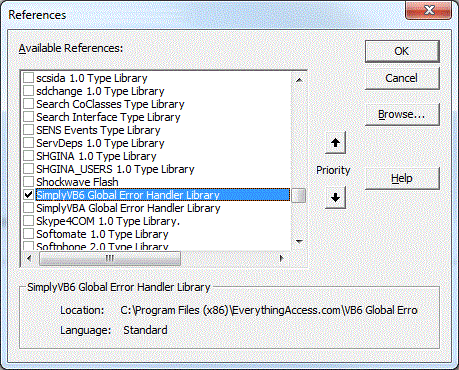
Put a tick next to the 'SimplyVB6 Global Error Handler Library' (as above).
Press OK.
Public Sub EnableErrorHandler()

    If ErrEx.EnableGlobalErrorHandler(AddressOf MyGlobalErrorHandler, True) = False Then

    	MsgBox "EnableErrorHandler() failed.  Failed to activate the global error handler."

    End If

End Sub

Public Sub DisableErrorHandler()

    ErrEx.DisableGlobalErrorHandler

End Sub
Public Sub MyGlobalErrorHandler()

    LogErrorToFile

End Sub

Public Sub LogErrorToFile()

    Dim FileNum As Long
    Dim LogLine As String

    On Error Resume Next ' If this procedure fails, something fairly major has gone wrong.

    FileNum = FreeFile
    Open "C:\ErrorLog.txt" For Append Access Write Lock Write As FileNum

        Print #FileNum, Now() & " - " & CStr(ErrEx.Number) & " - " & CStr(ErrEx.Description)

        'We will separate the call stack onto separate lines in the log
	With ErrEx.CallStack
            Do
                Print #FileNum, "       --> " & .ProjectName & "." & _
                                .ModuleName & "." & _
                                .ProcedureName & ", " & _
                                "#" & .LineNumber & ", " & _
                                .LineCode & vbCrLf
            Loop While .NextLevel
	End With

    Close FileNum

End Sub
This routine (above) is simply logging every error that occurs to a log file on your C drive. Nothing fancy for this example.
Private Sub Command1_Click()

    MsgBox 1 / 0

End Sub
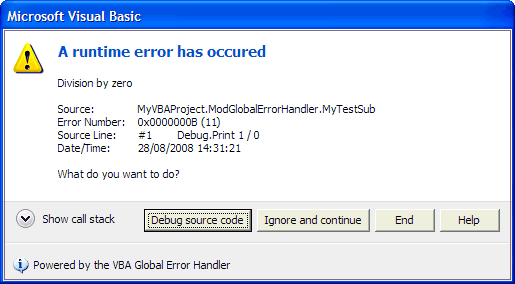
Now open your application ensuring that the initialization routine (EnableErrorHandler) is run. On clicking the test button you should now see the new default Vista dialog in all it's glory:
TWINBASIC LTD (Company No. 16590181, VAT No. GB497509439)
Terms | Privacy | Sitemap | X (Twitter)

